Appearance
Lead to client
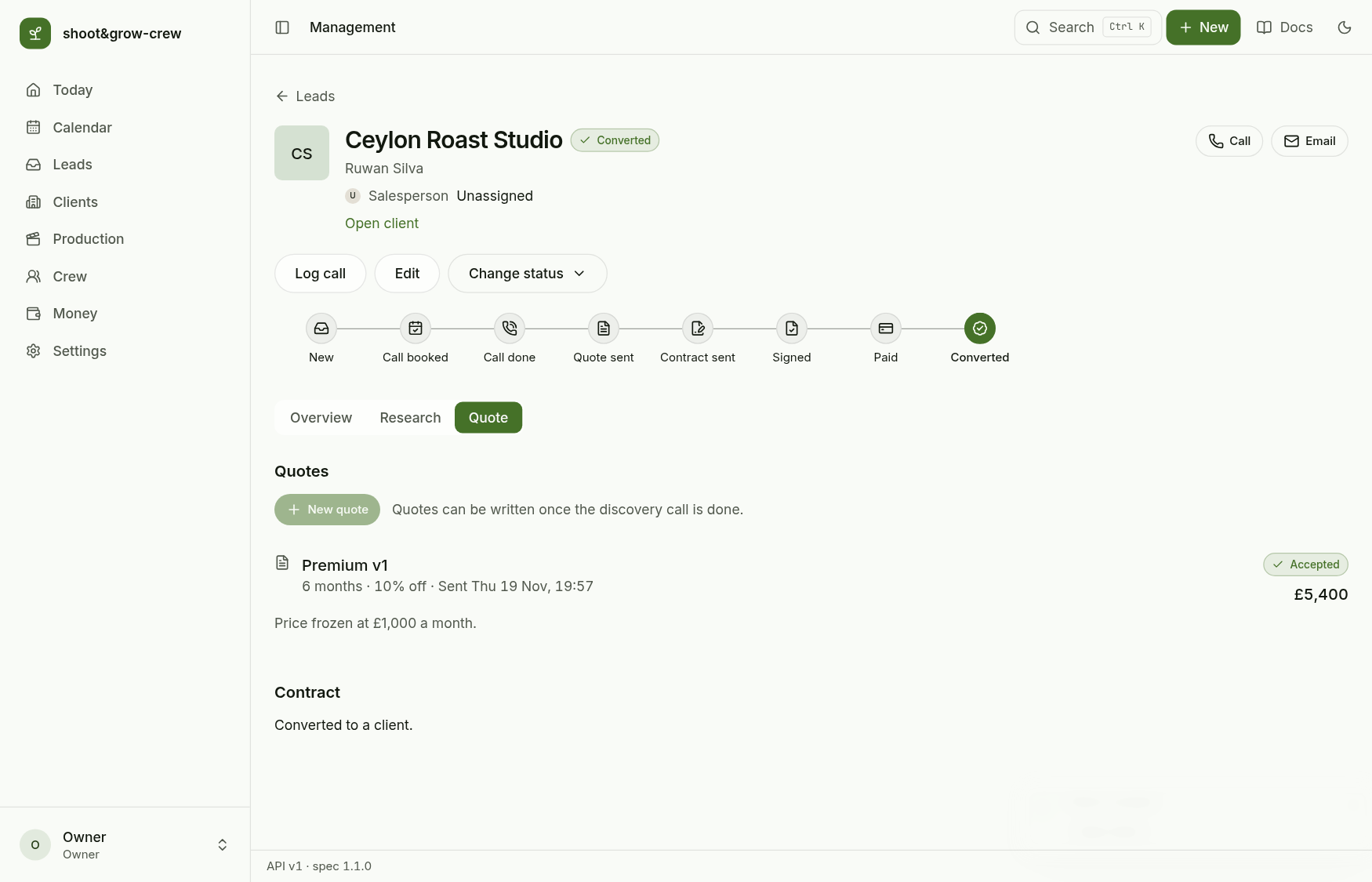
A lead walks a fixed path: New, Call booked, Call done, Quote sent, Contract sent, Signed, Paid, Converted. Converting is only possible once the lead is Paid, and it creates the client from the accepted quote, so the client keeps the exact package, price and term that were sold.
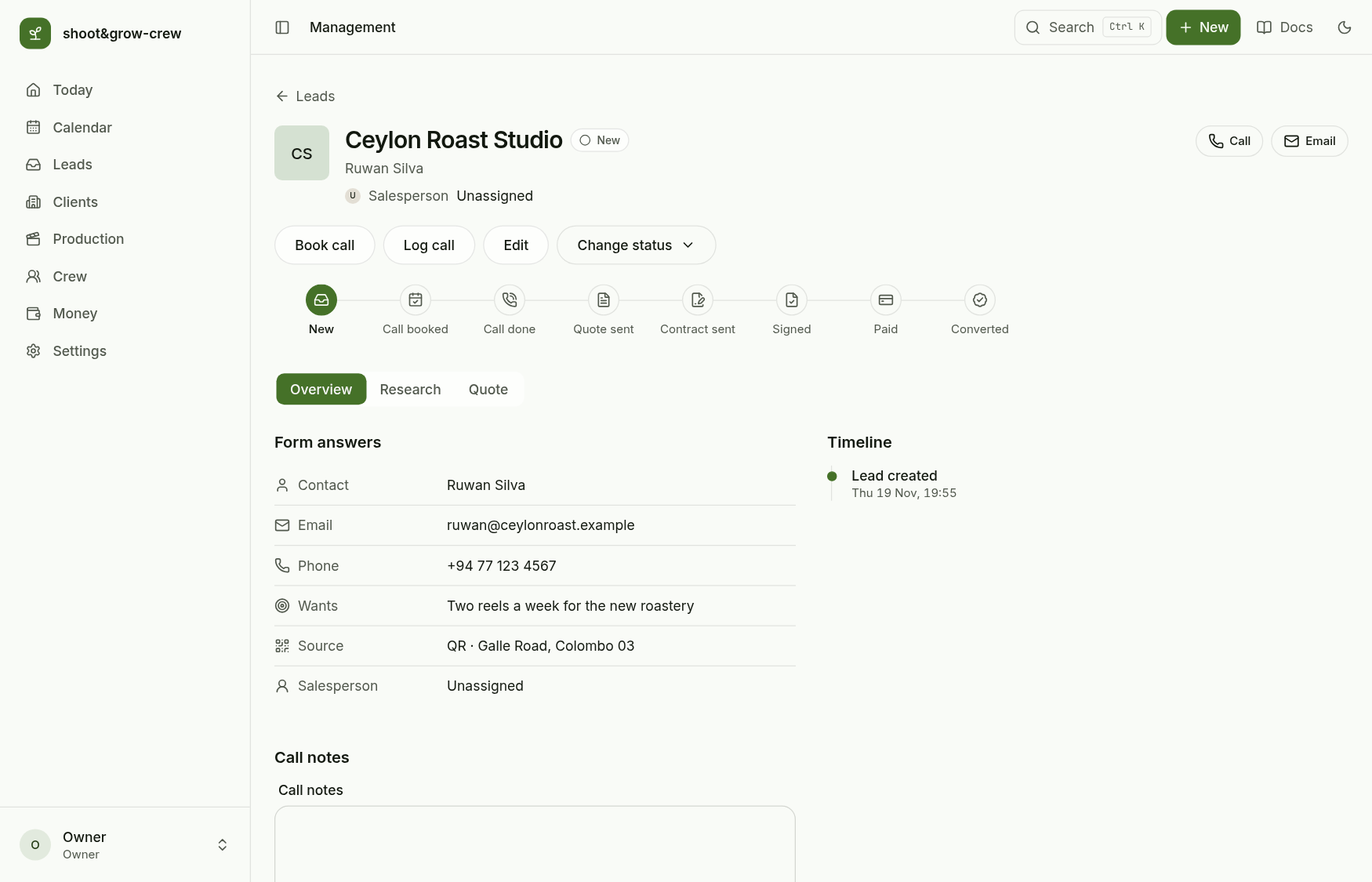
Test lead used here: Ceylon Roast Studio, contact Ruwan Silva. Everything on this page was recorded in the running app.
1. Start on Today
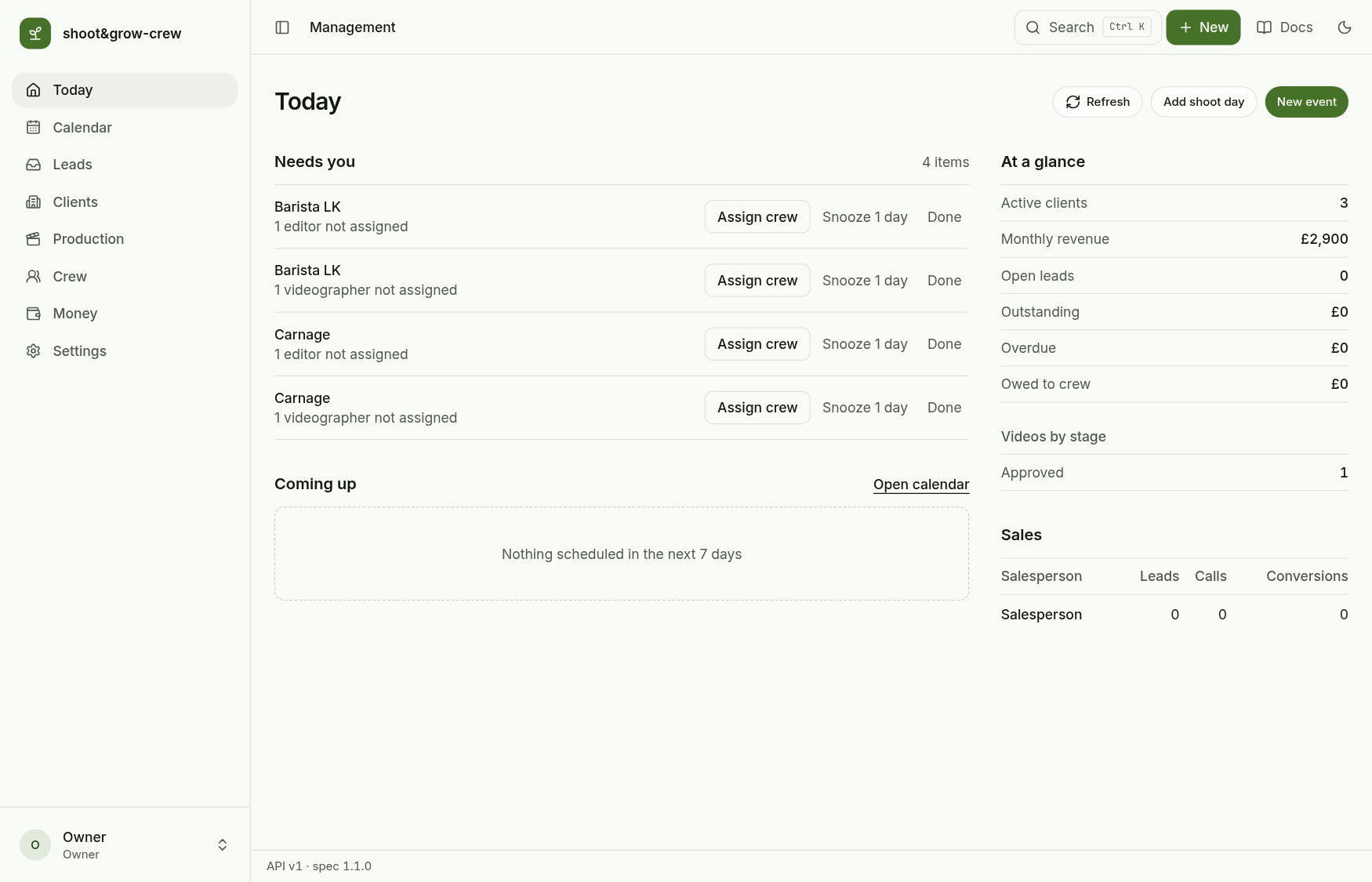
Sign in as the owner. Today lists what needs you (here, clients without crew), what is coming up in the next seven days and the numbers at a glance.
2. Add the lead
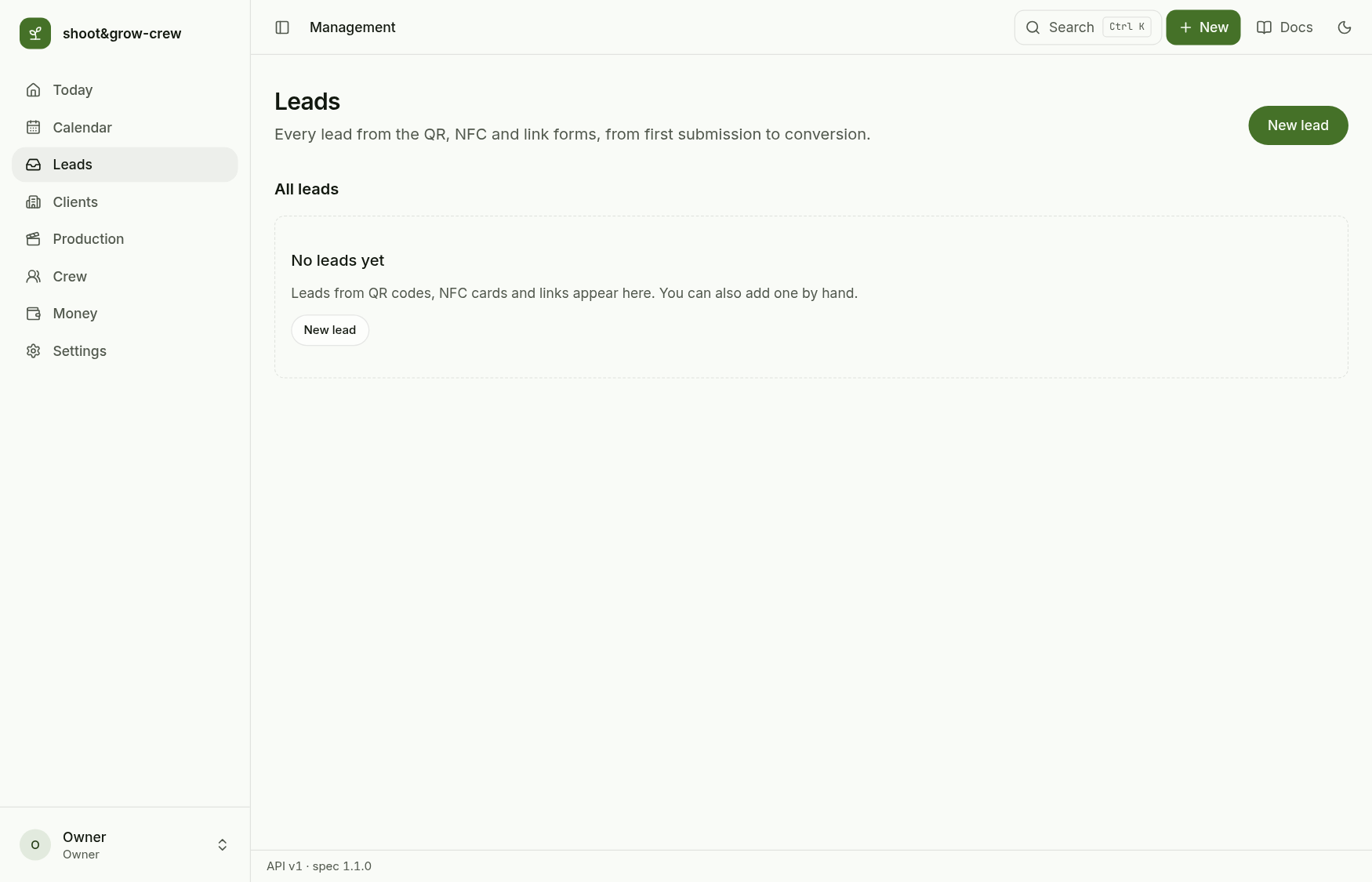
Open Leads and choose New lead.
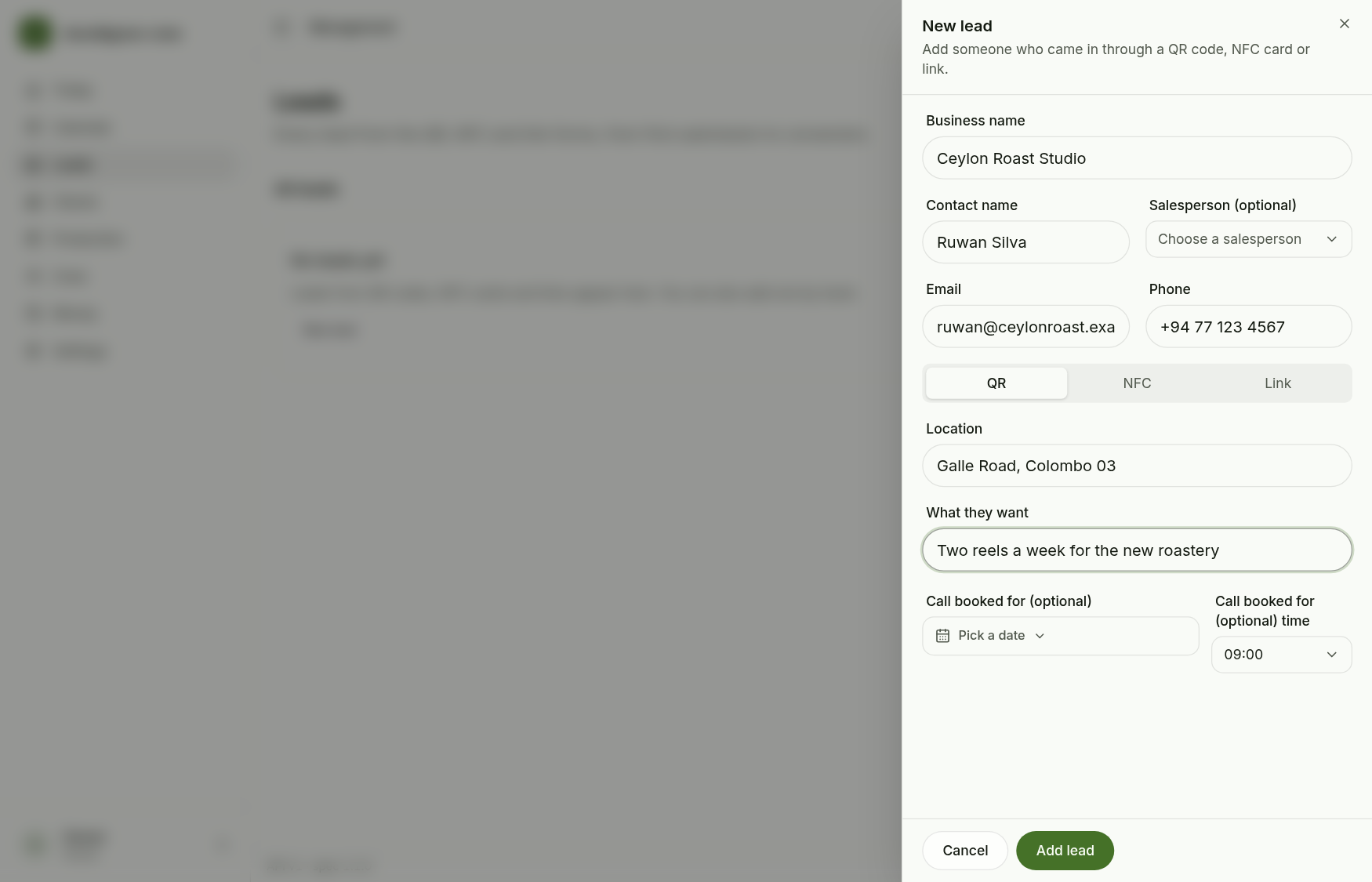
Fill the business, the contact and an email or a phone number (one of the two is required). Pick where the lead came from (QR, NFC or Link) with a location, and write what they want. Salesperson is optional: leave it empty when you took the lead yourself.
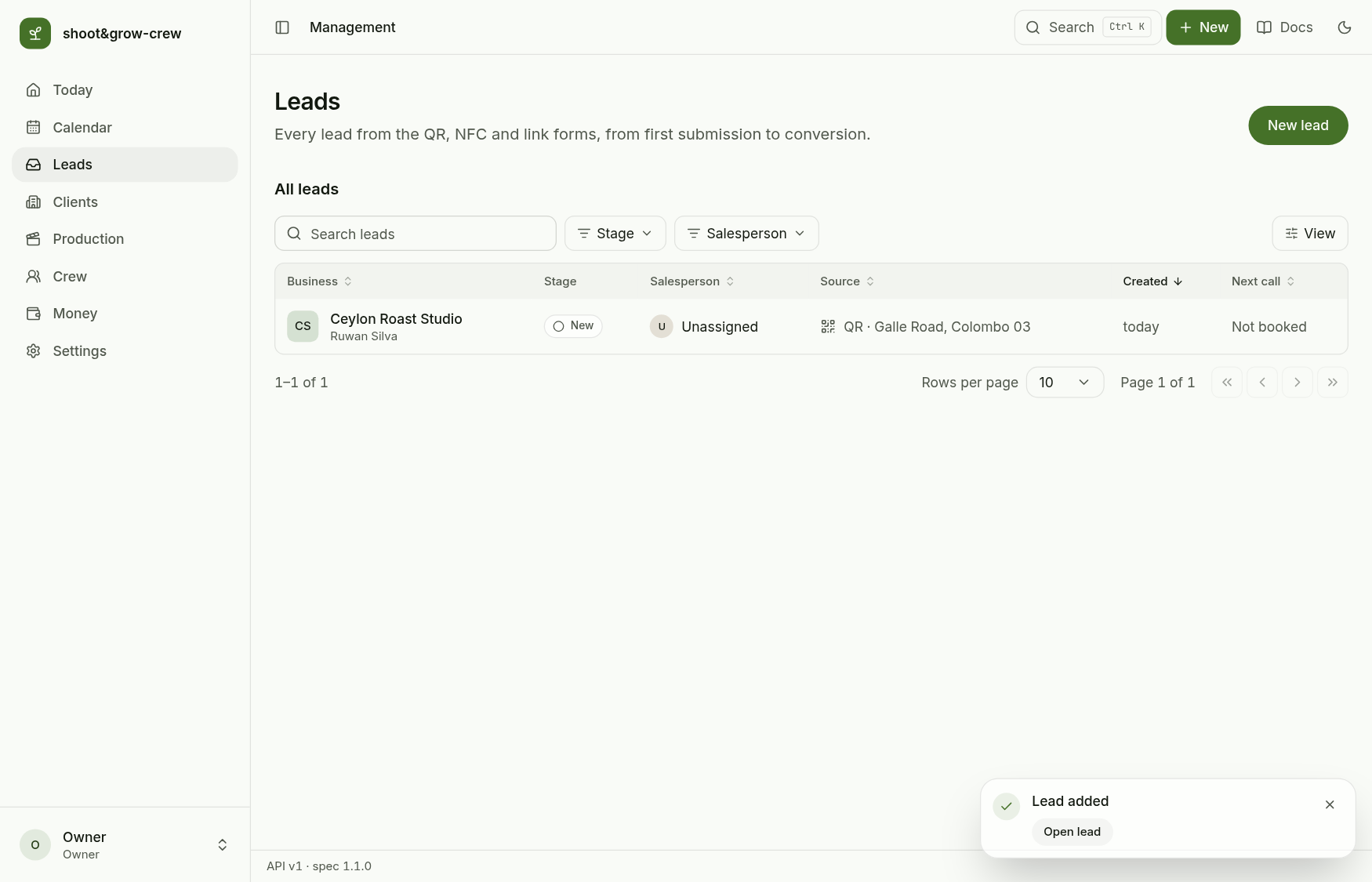
The lead appears at once as New.
The server warns about a duplicate (same email, phone number or business) but does not block it.
3. The lead page
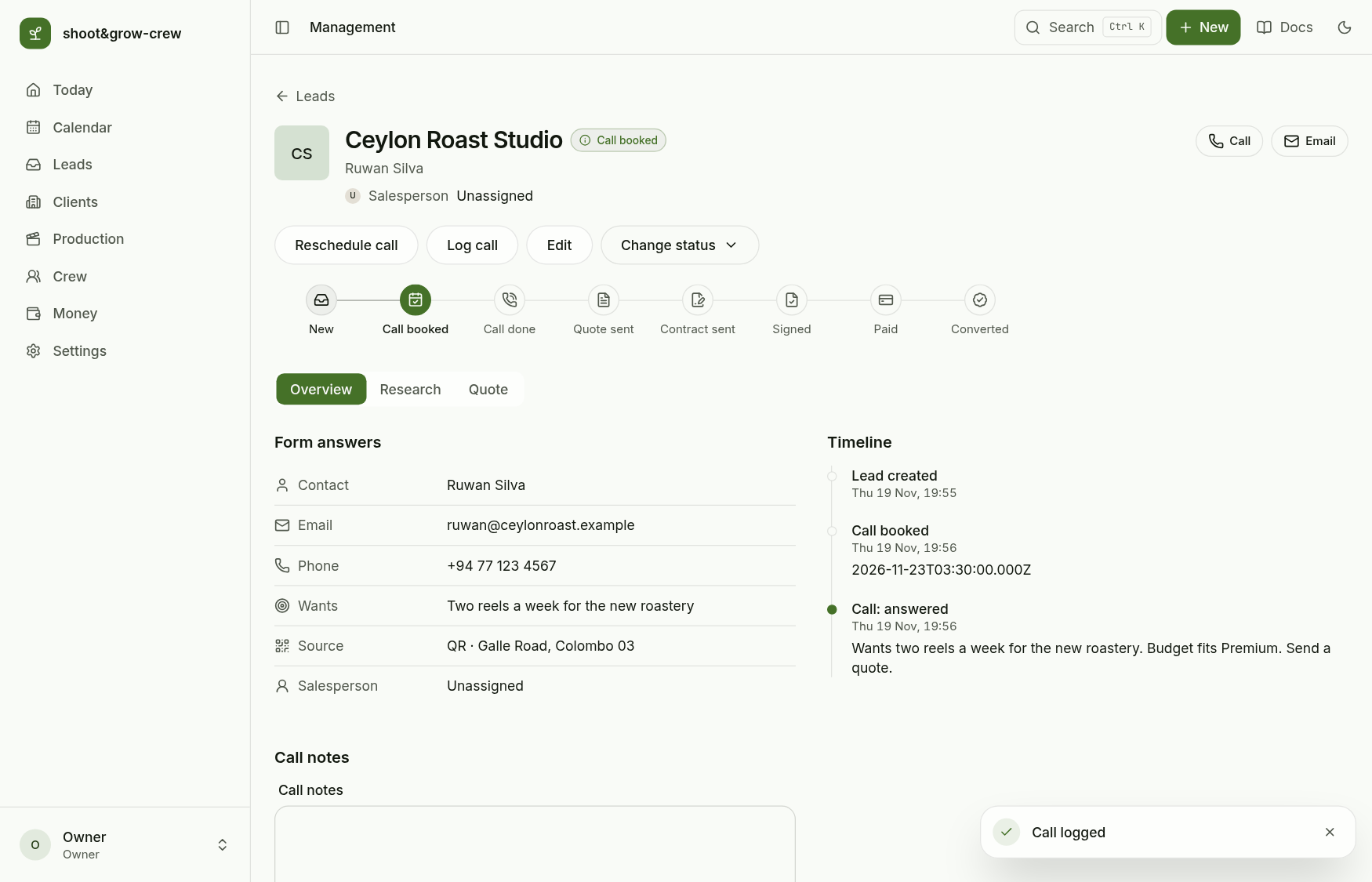
The header shows the stage path, the contact and the actions: Book call, Log call, Edit, Change status. Overview holds the form answers, call notes and the timeline; Research runs the research pipeline; Quote holds quotes and the contract.
4. Book, hold and log the call
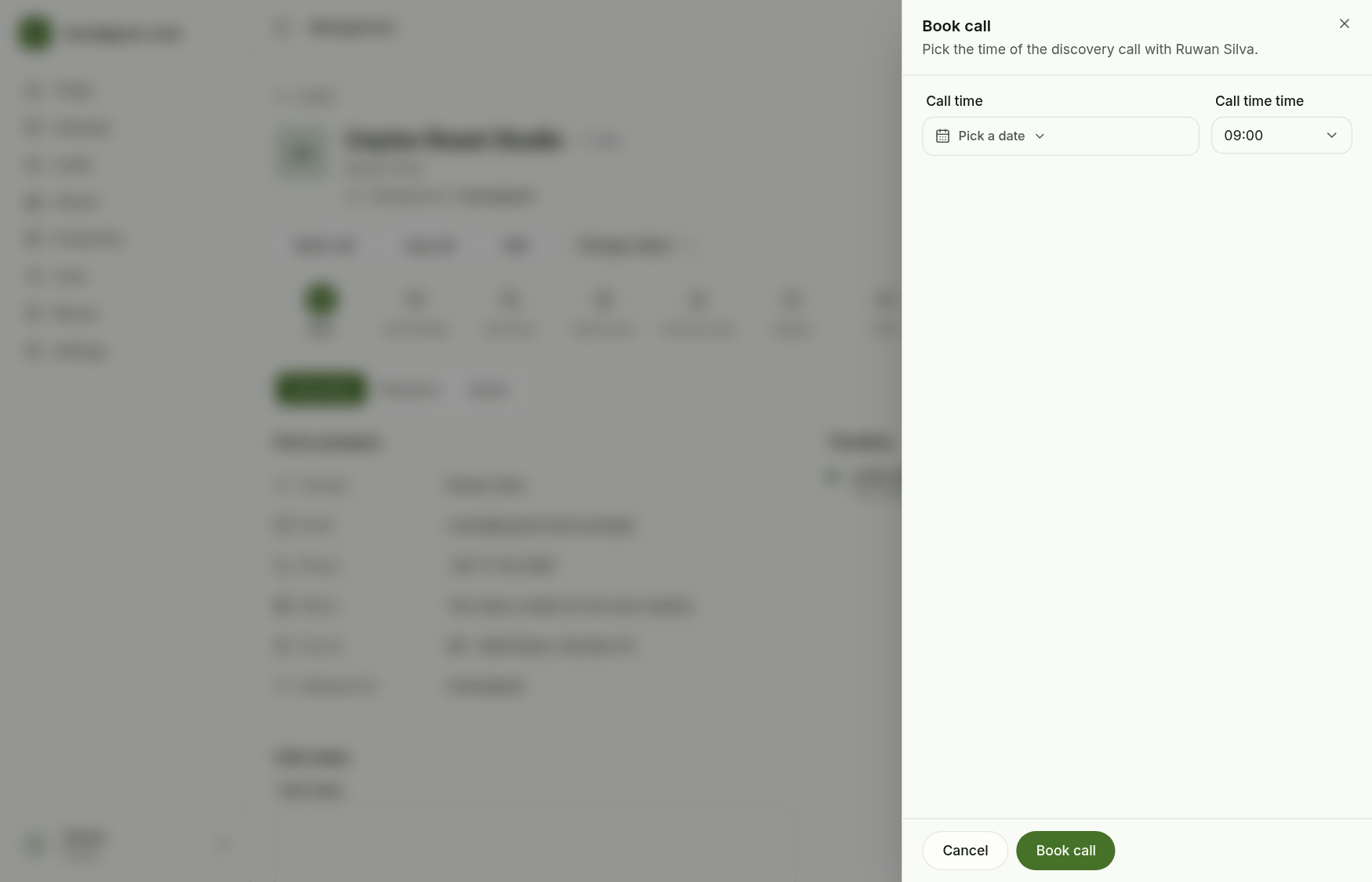
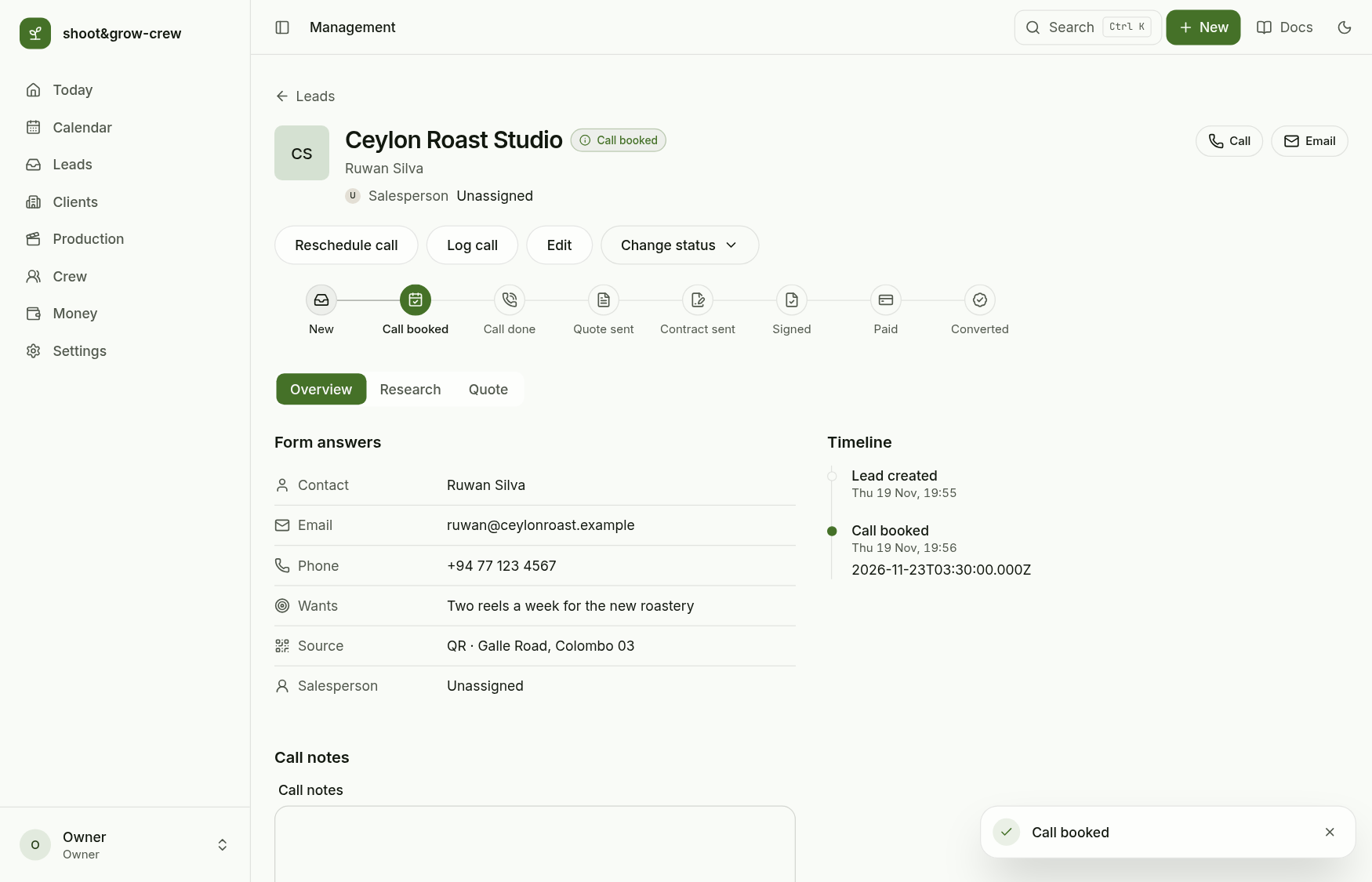
Book call asks for the date and time of the discovery call. Booking moves the lead to Call booked and adds the call to the calendar as a Discovery call event; the button becomes Reschedule call, which moves the same event.
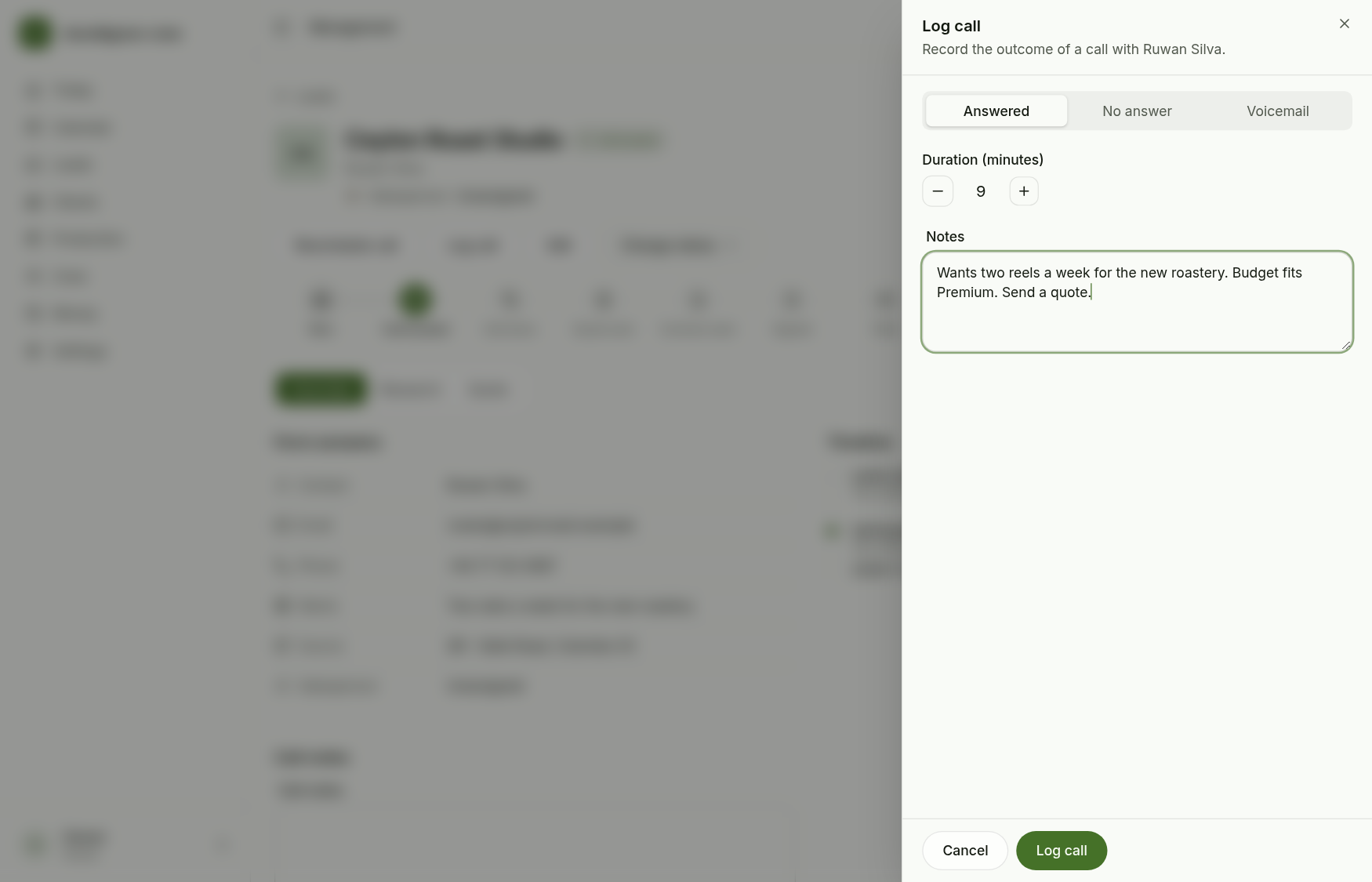
After the call choose Log call: the outcome (answered, no answer, voicemail), the length in minutes and notes.
The call lands in the timeline.
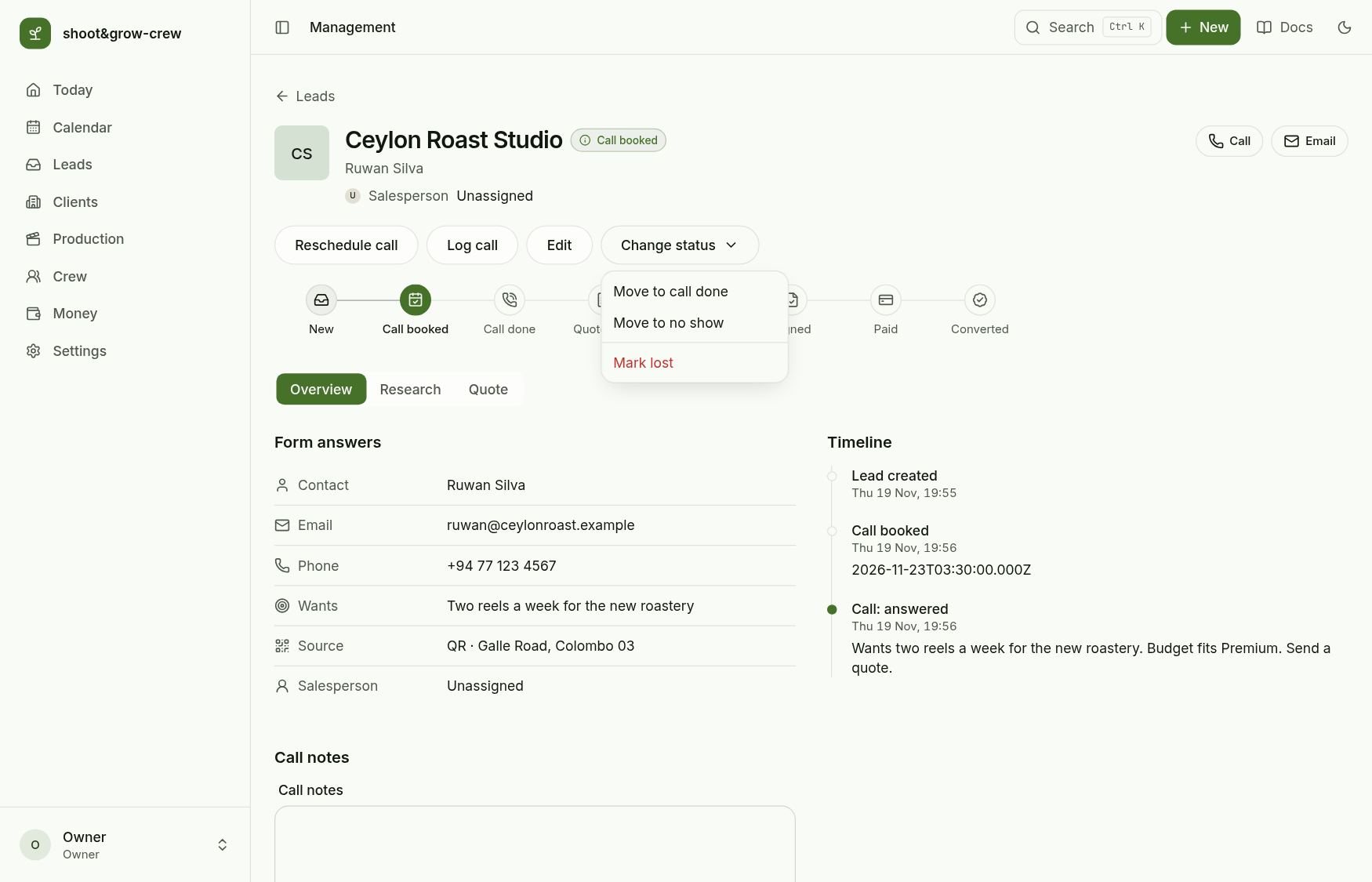
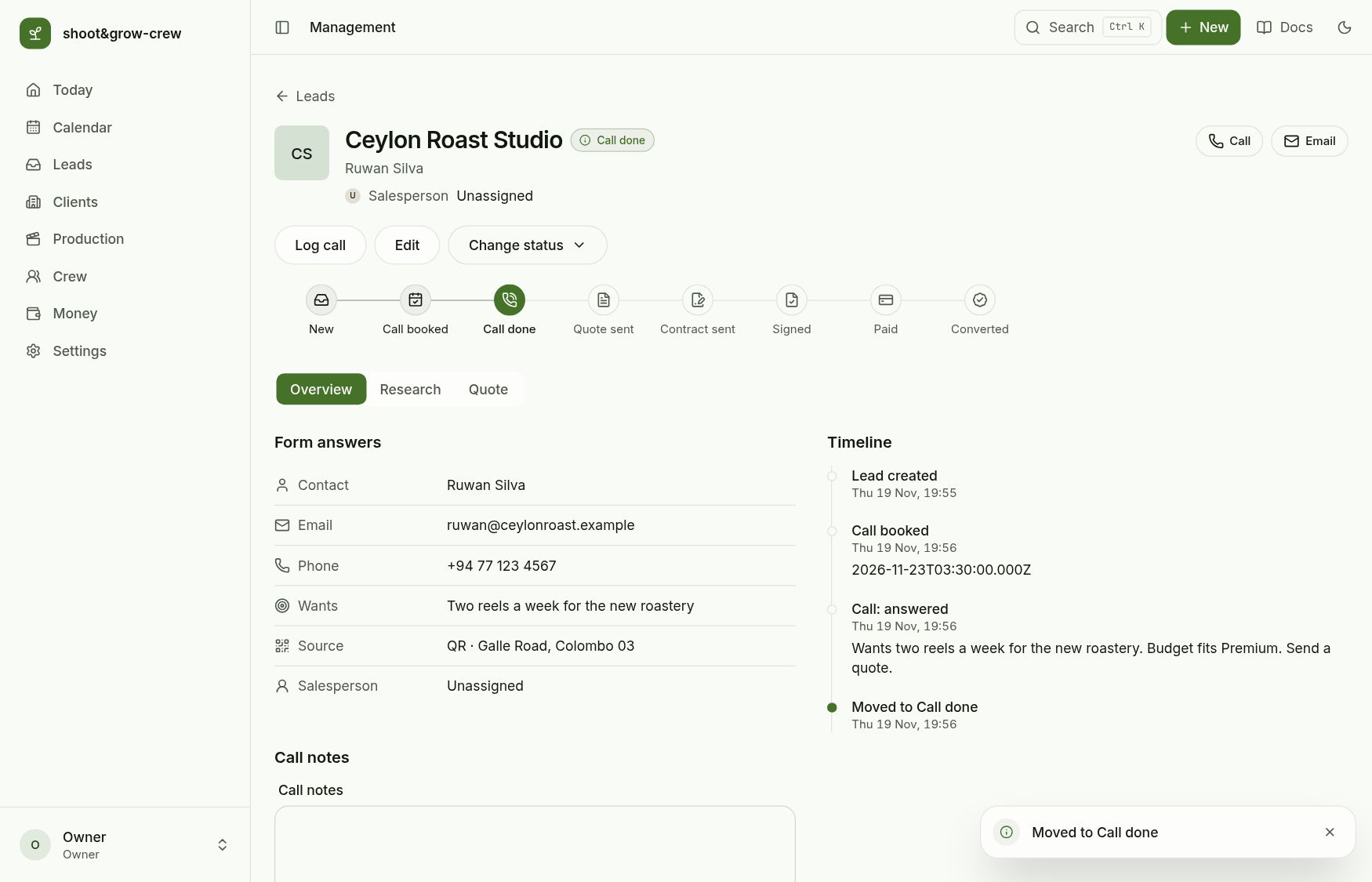
Change status offers only what is allowed from here: Move to call done, Move to no show or Mark lost.
5. Build and send the quote
Quotes are available once the call is done. Open the Quote tab.
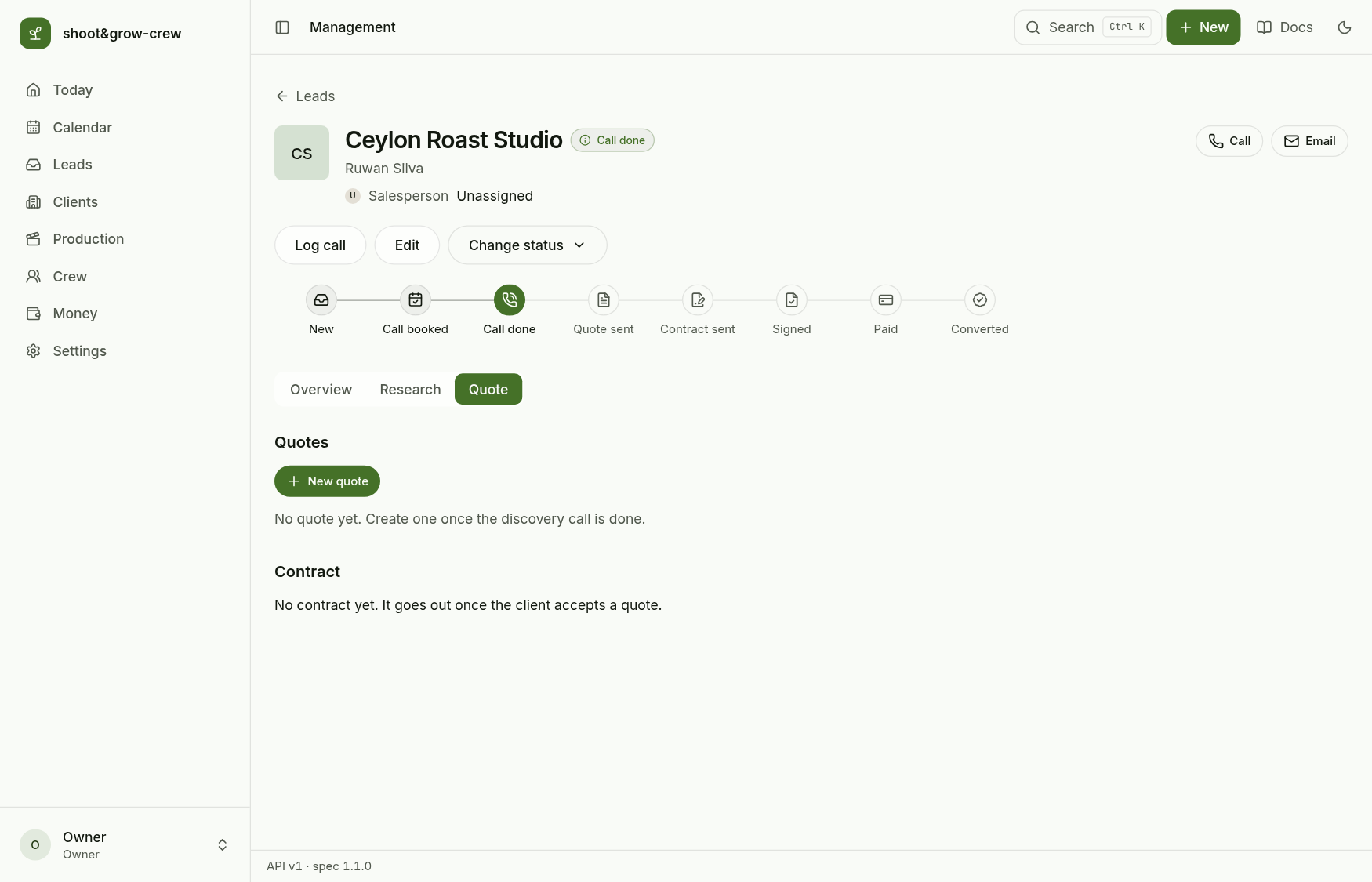
New quote: choose the package (at the highest published version), the number of months (at least the package minimum) and an optional discount. The price is computed on the server and frozen: later package price changes never alter a quote already made. With a discount the wording shows the discounted monthly price, so monthly price times months equals the total.
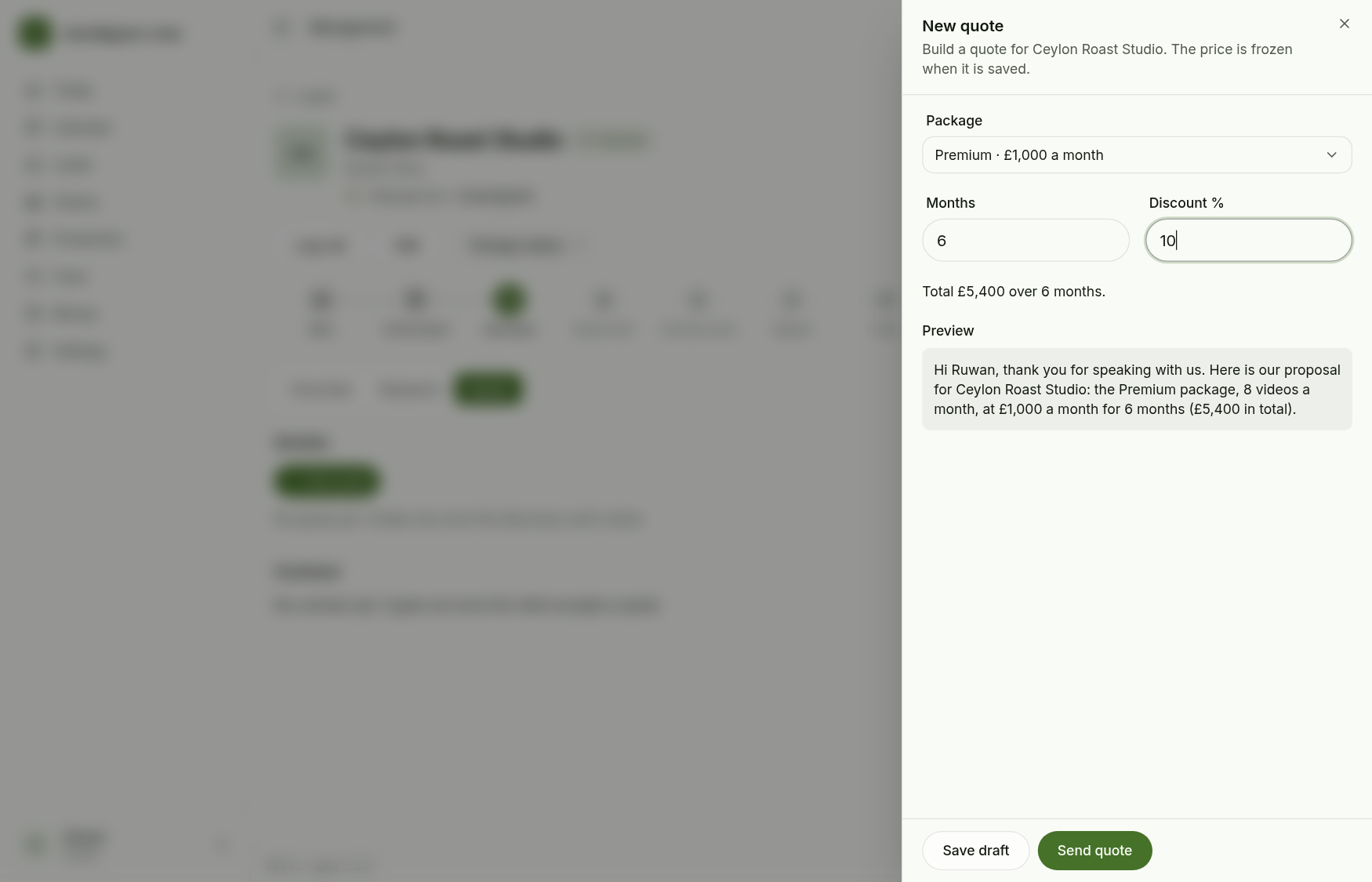
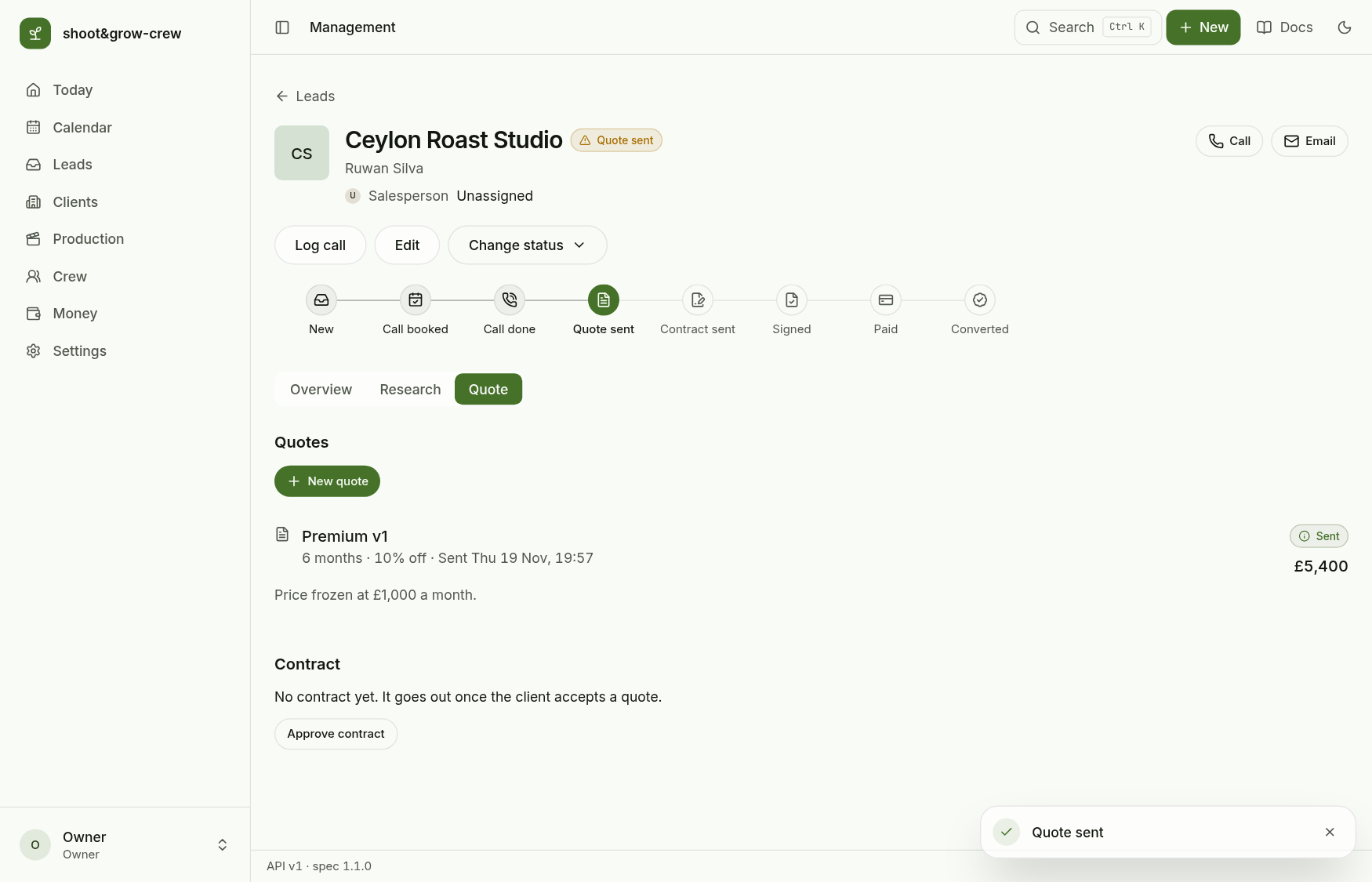
Send quote freezes the wording and the price and moves the lead to Quote sent. Sending a newer quote expires older open ones.
6. Approve the contract
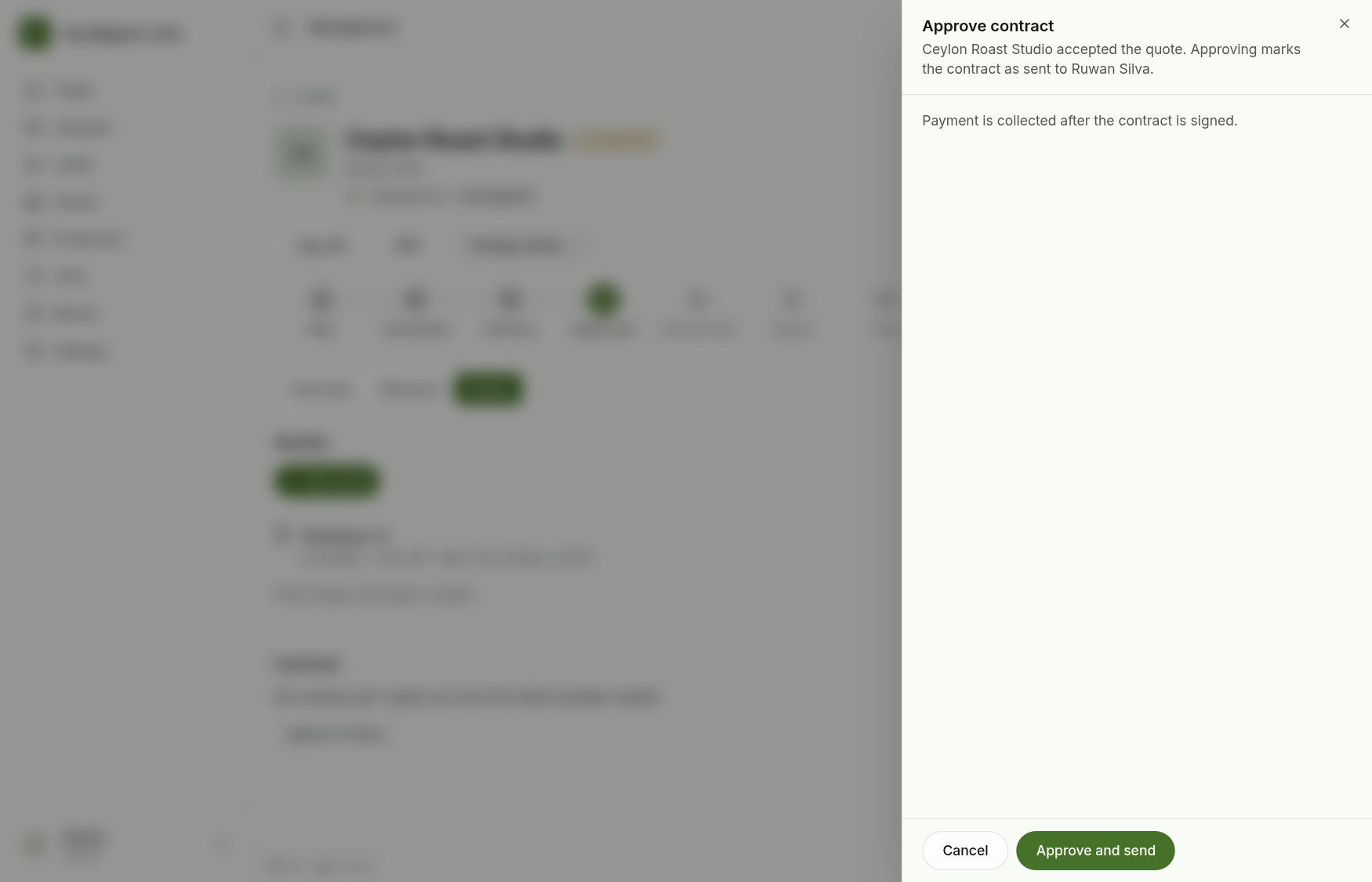
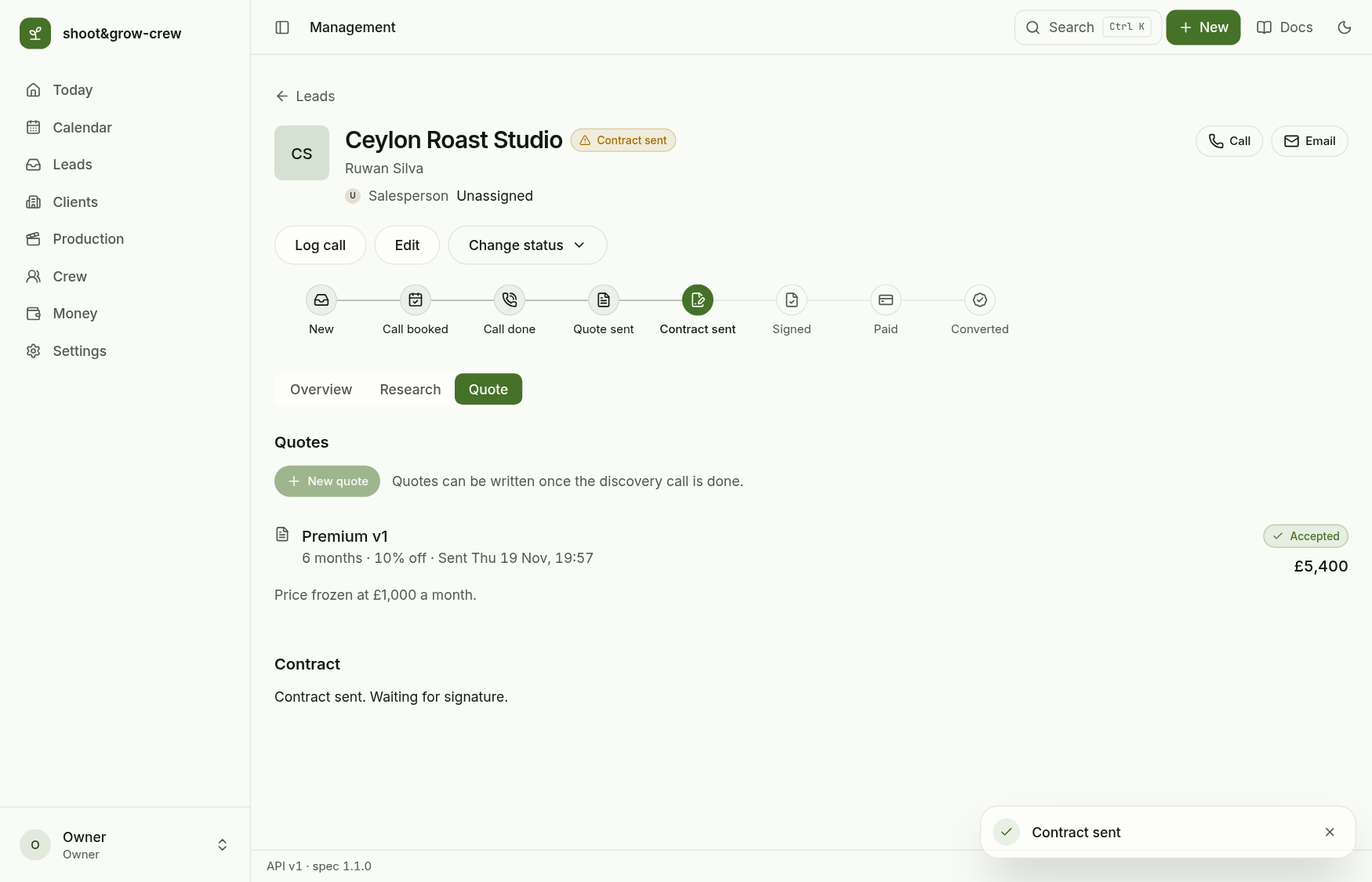
When the client says yes, choose Approve contract. This accepts the quote and moves the lead to Contract sent.
7. Signed, then Paid
Signing and payment are explicit owner actions in Change status: Mark signed, then Mark paid once the first payment is in.
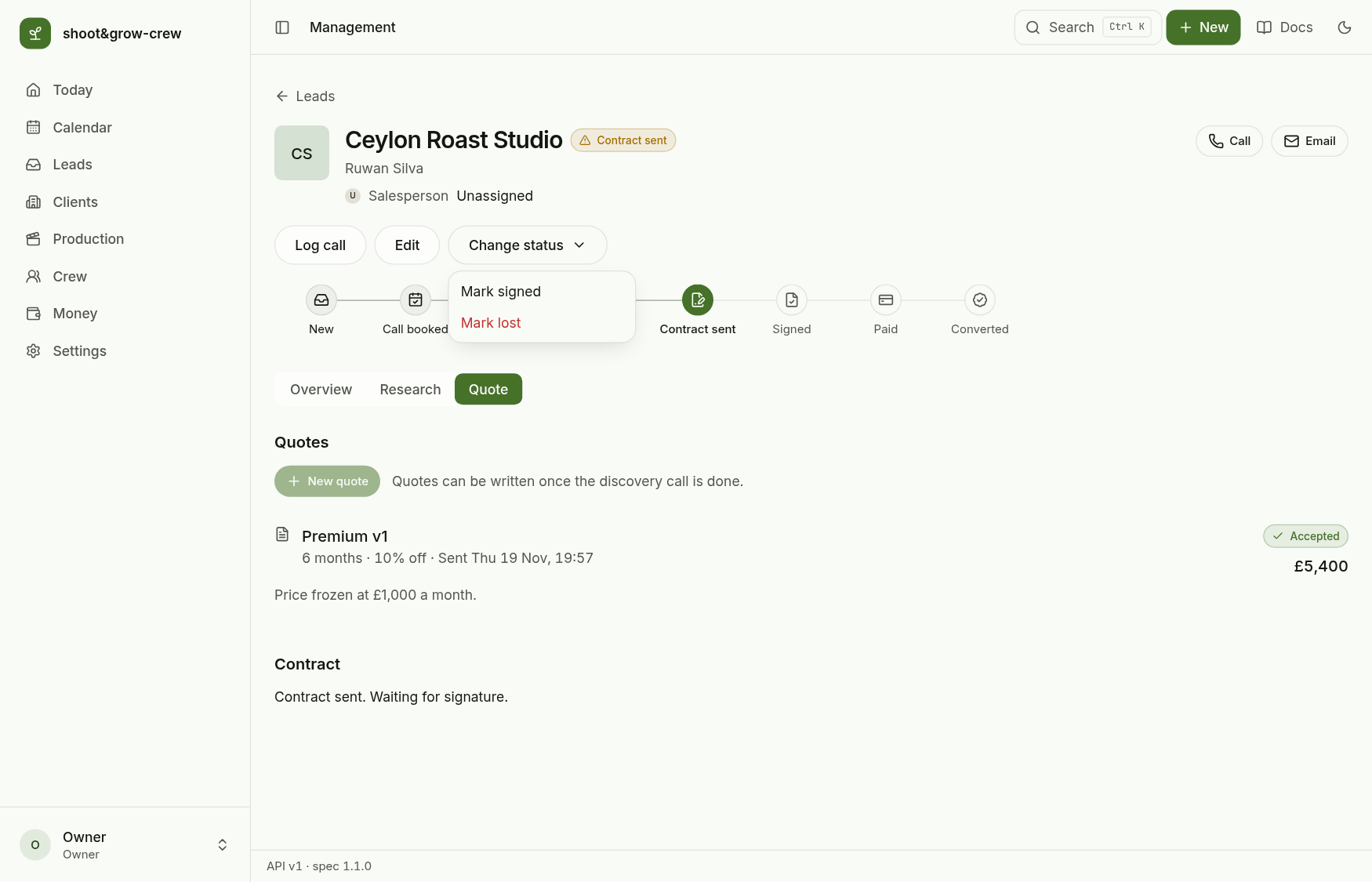
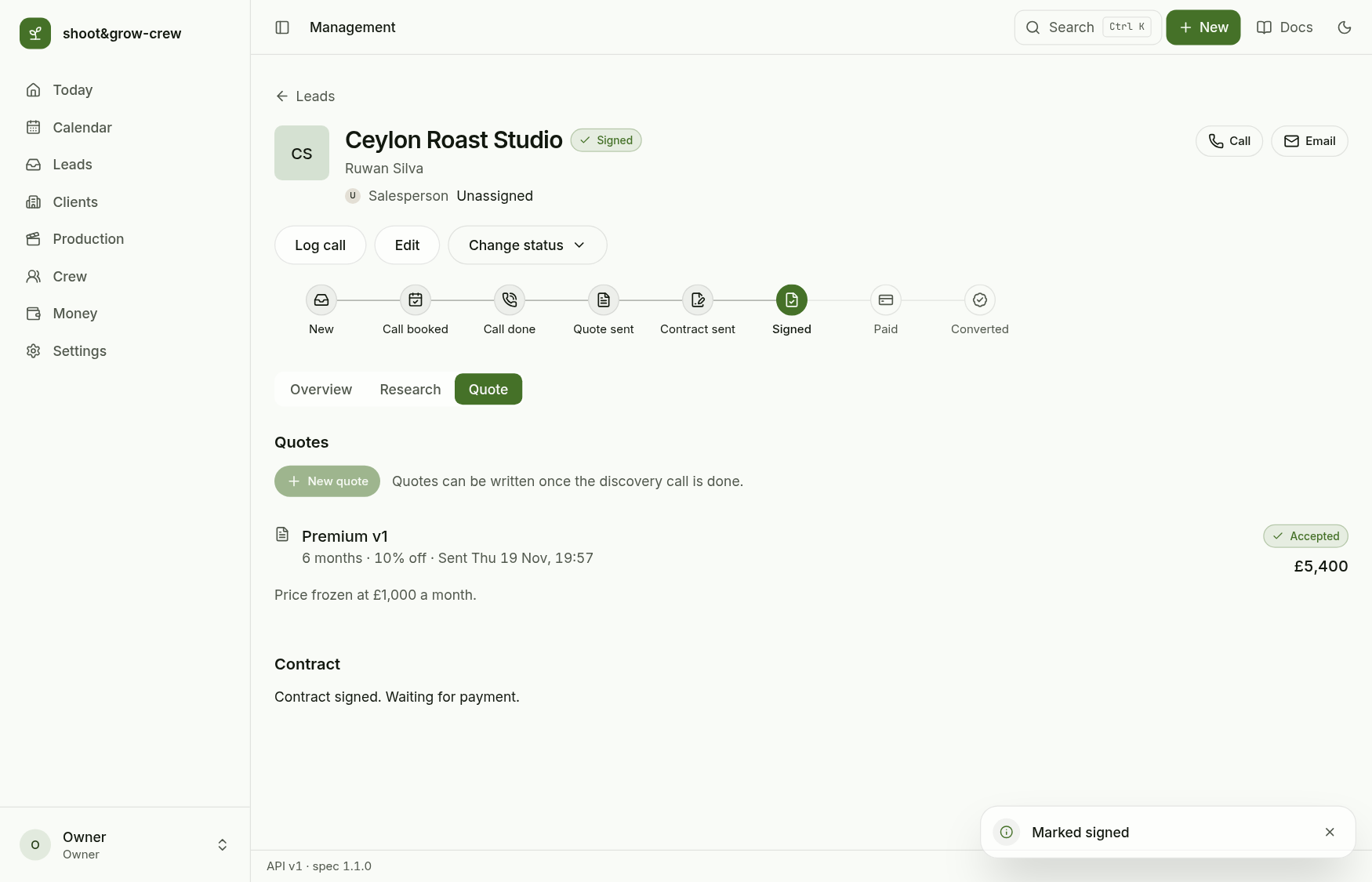
At Paid the Convert to client button appears.
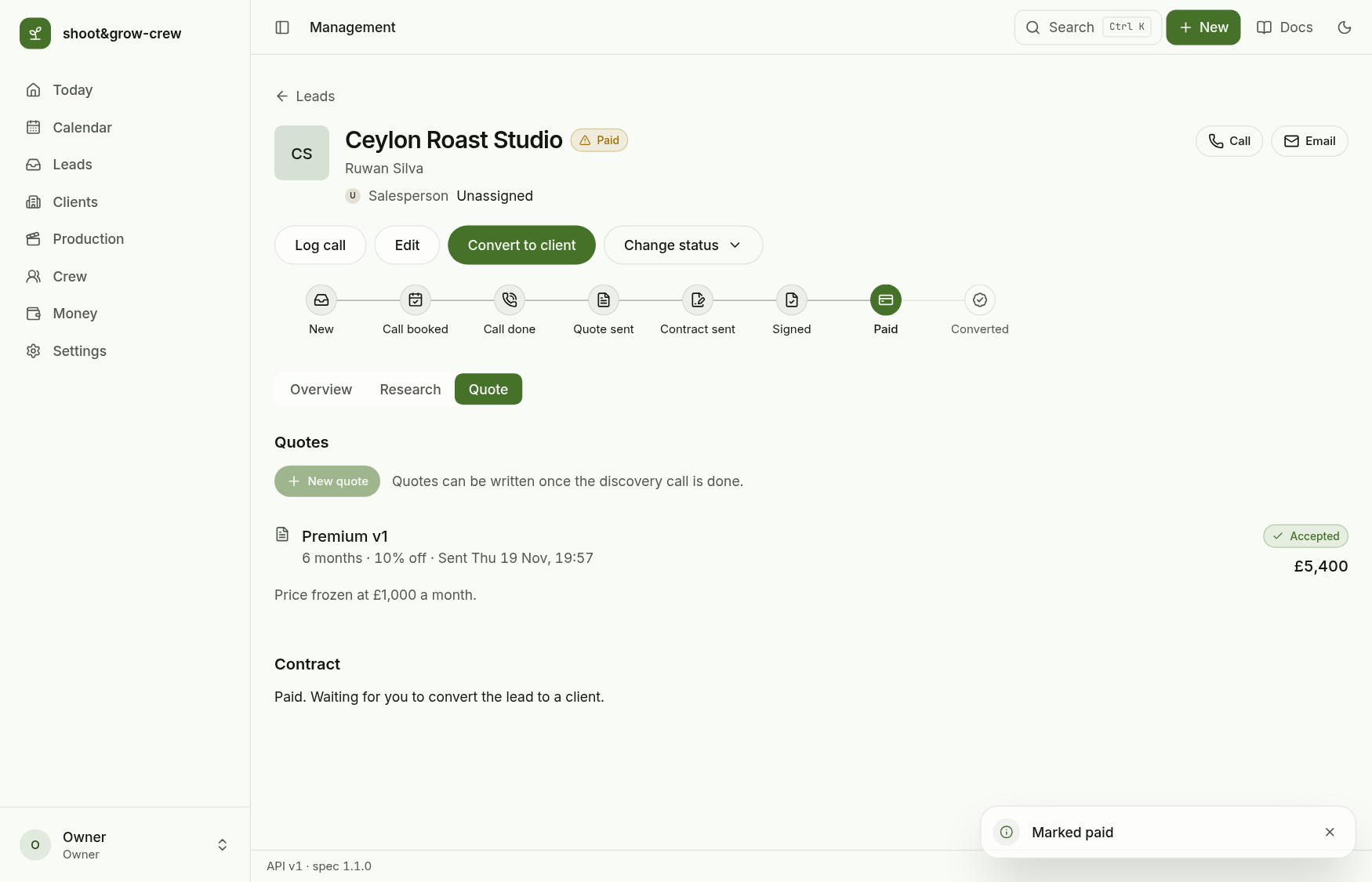
Marking a lead Paid records the stage only. It does not create an invoice or a payment: record the money in Money in and out.
8. Convert to a client
Convert to client shows what the client will be created with (business, contact, package, the monthly price after any discount and the term) and the contract start date.
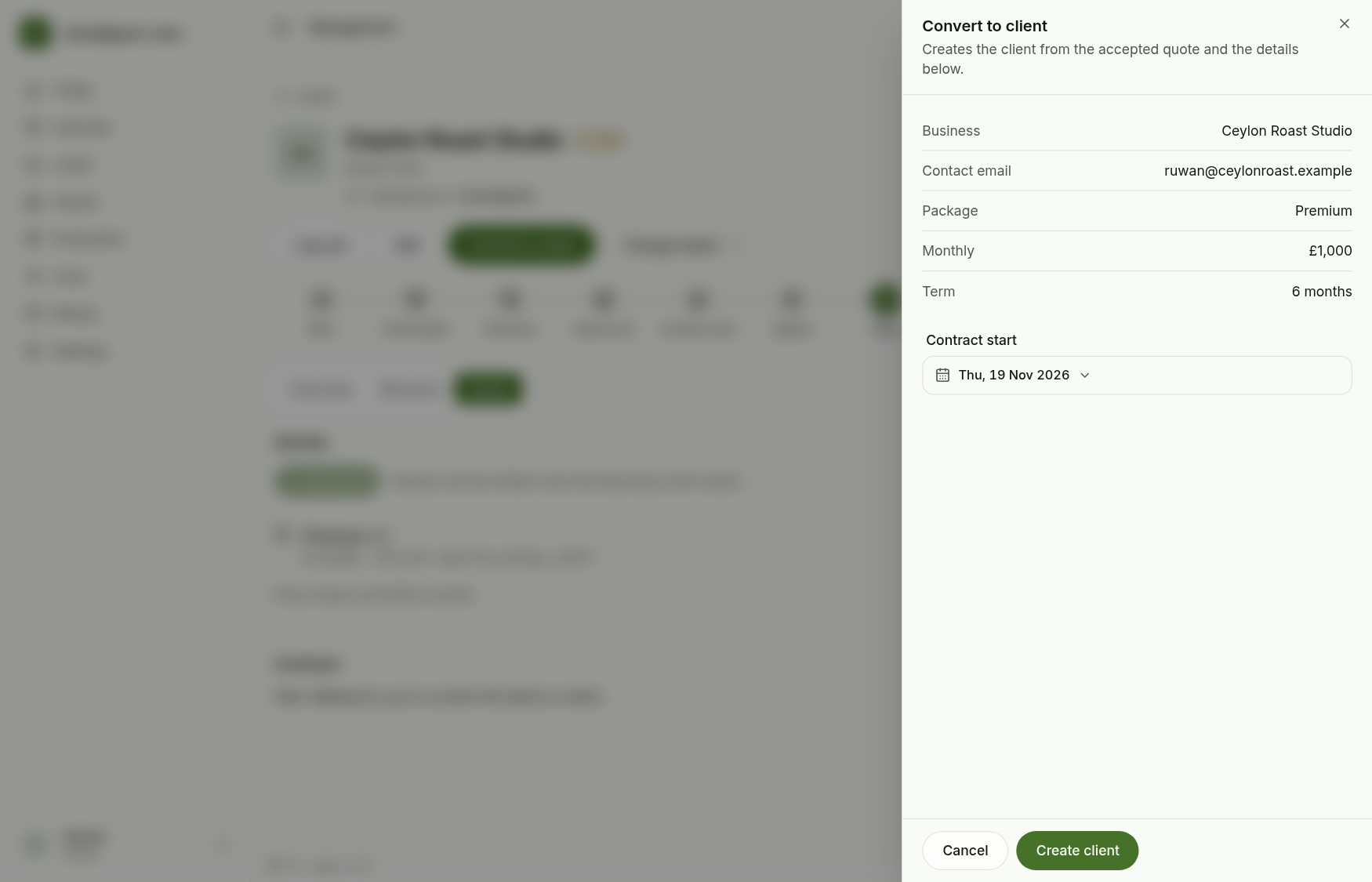
Create client makes the client, closes the lead as Converted and adds an Open client link to the lead header. Converting twice is safe: the same client comes back.
9. The new client
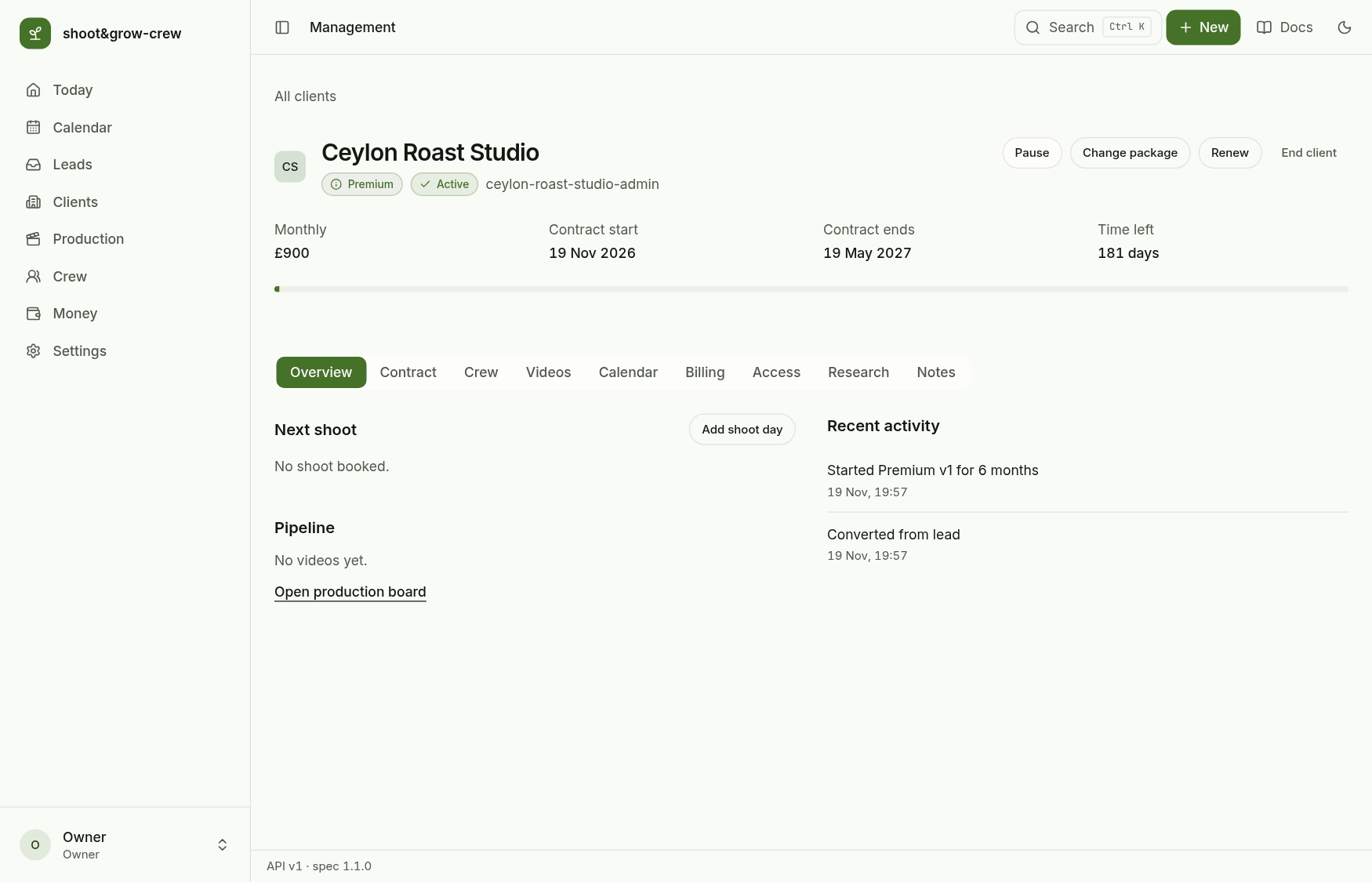
The client page opens on Overview with the contract bar and the tabs: Overview, Contract, Crew, Videos, Calendar, Billing, Access, Research, Notes. The monthly price is the discounted one from the quote.
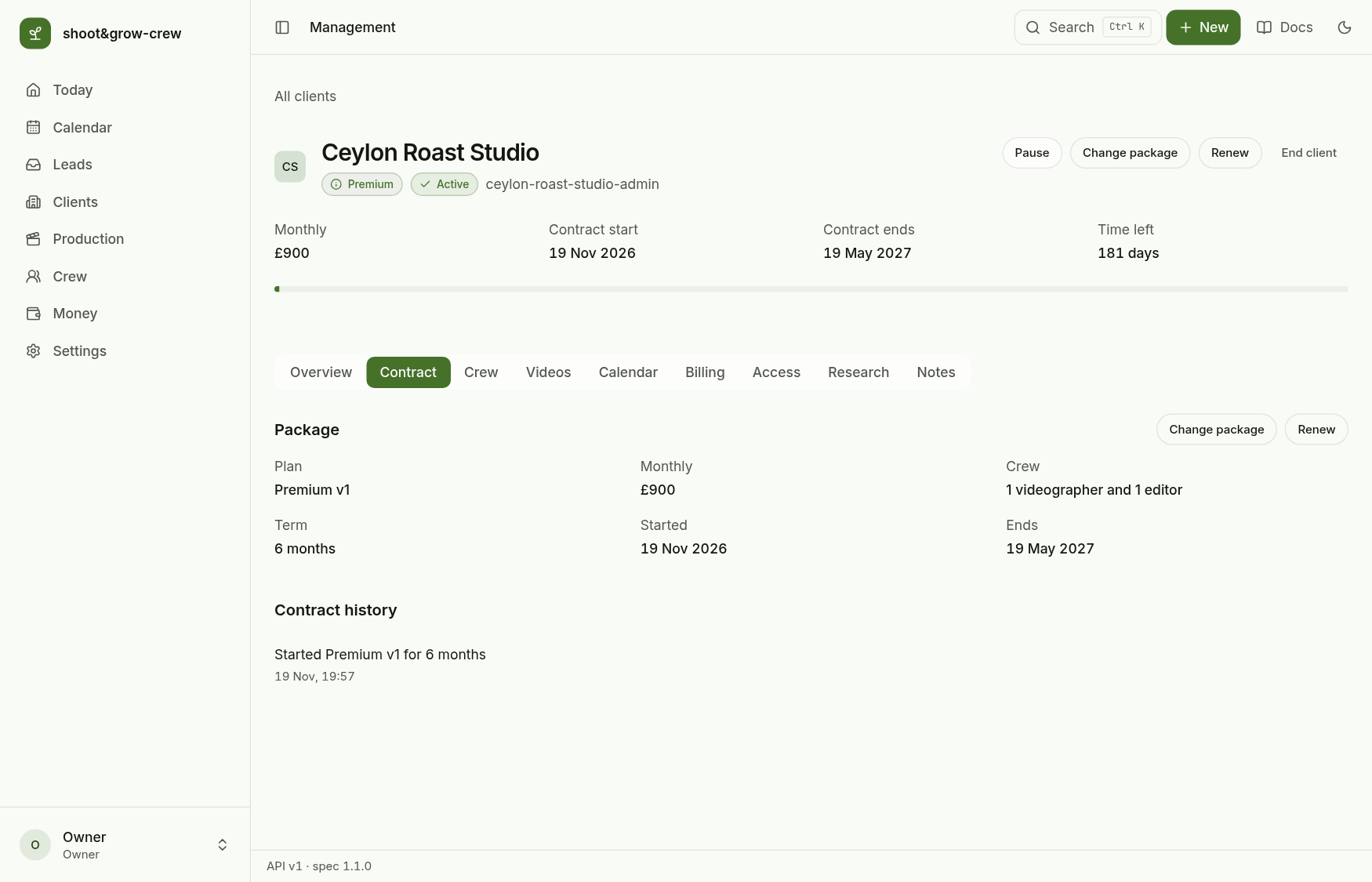
Contract shows the package frozen at signing and the renew, change package, pause and end actions.
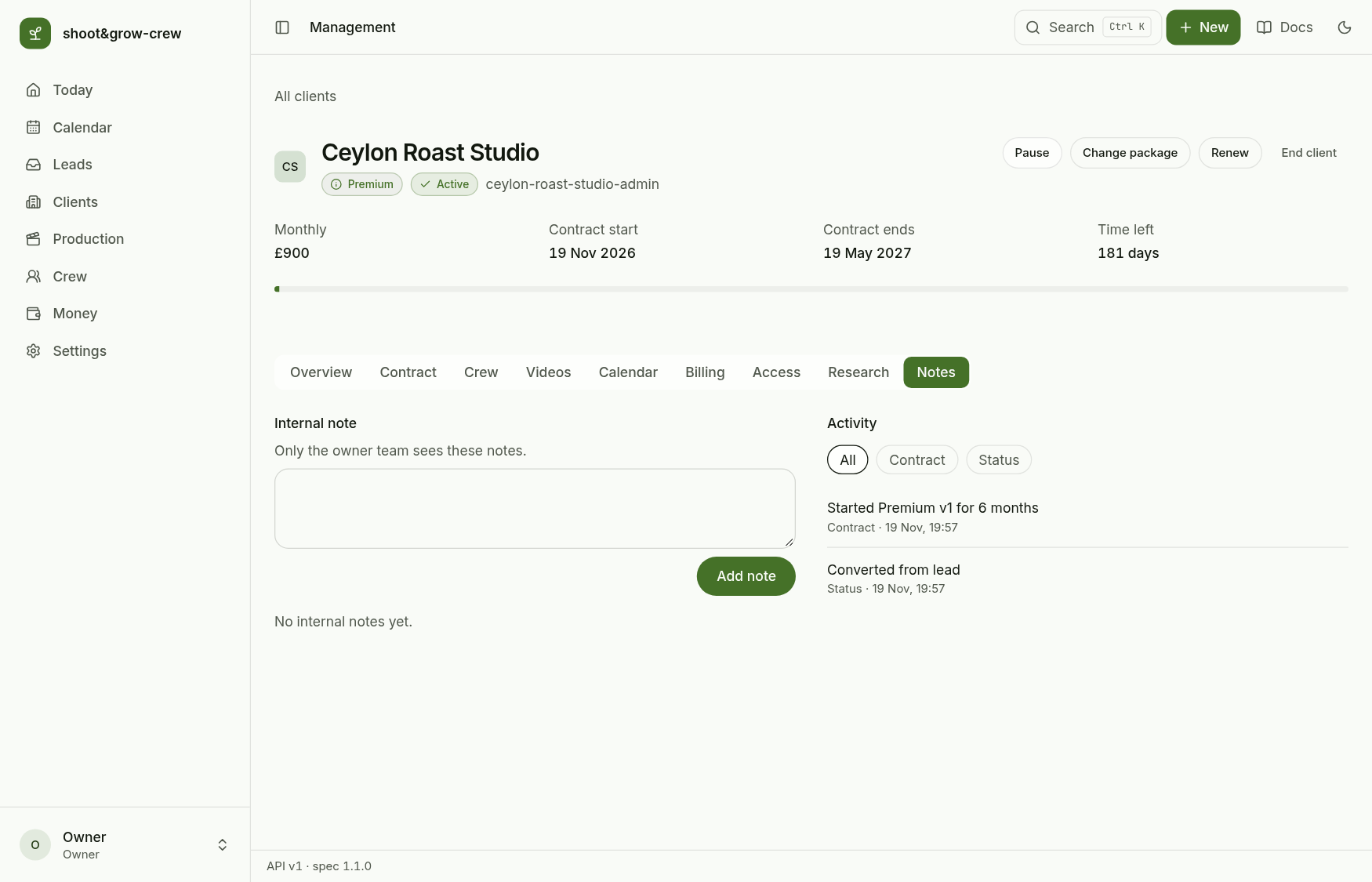
Notes keeps the activity log. The lead's conversion and the contract start are already in it.
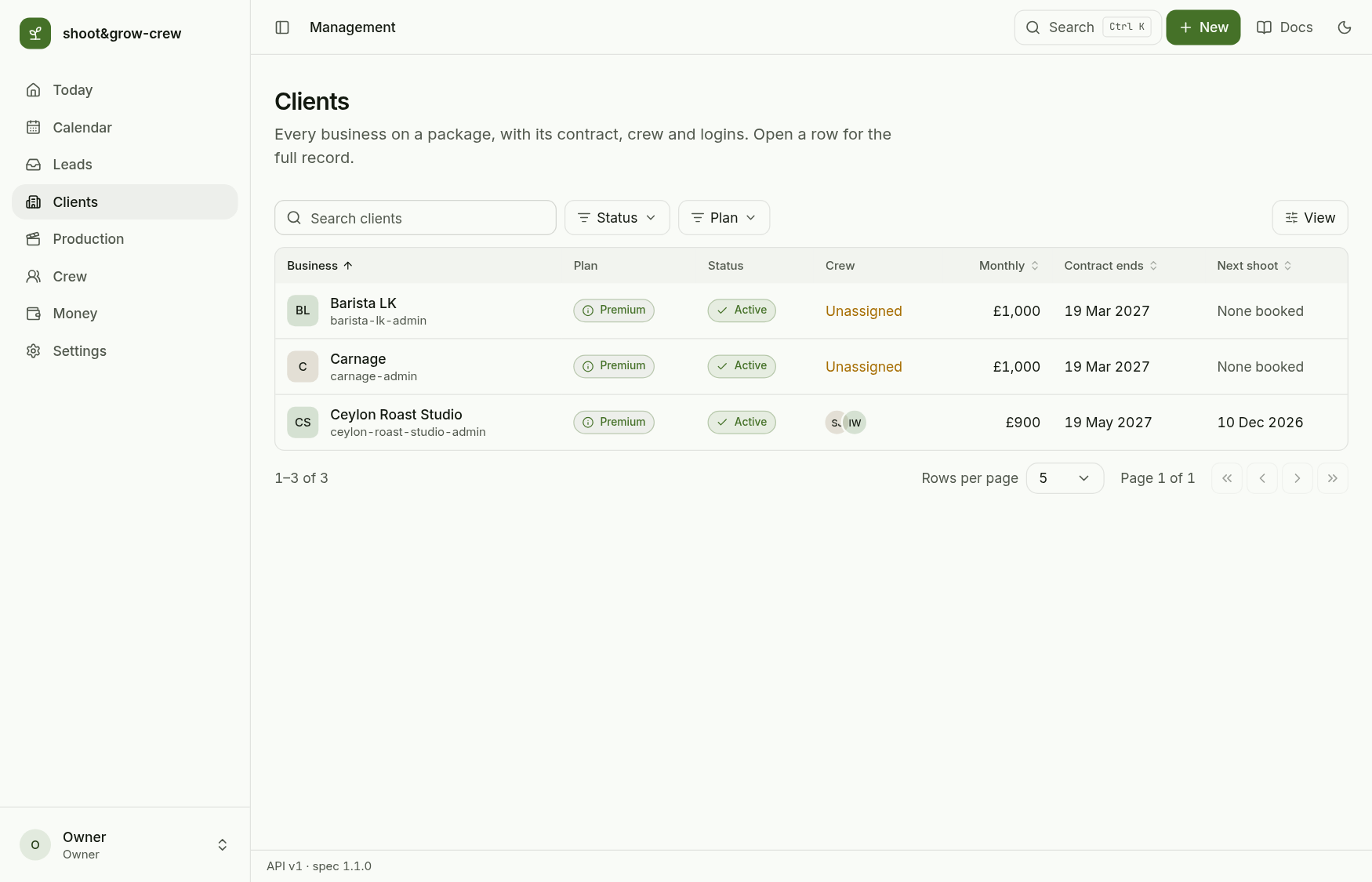
The client is now in Clients. Continue with Crew and the first shoot.
What the server enforces
- A lead can only move one step along the path (or to Lost with a reason, No show from Call booked, Declined from Quote sent). Quote sent, Contract sent, Signed, Paid and Converted come only from their own actions, and Signed and Paid are owner-only.
- A quote needs the call to be done; its price comes from the published package, never from the request.
- Conversion needs a Paid lead with an accepted quote.
- Every change writes an audit row.