Appearance
Crew and the first shoot
After a lead becomes a client the client needs its crew (a Premium package asks for one videographer and one editor), a shoot day on the calendar and its first video in production.
Test records used here: crew Sahan Jayasuriya (videographer), Ishara Wijesinghe and Nimali Perera (editors), client Ceylon Roast Studio.
1. Add the crew
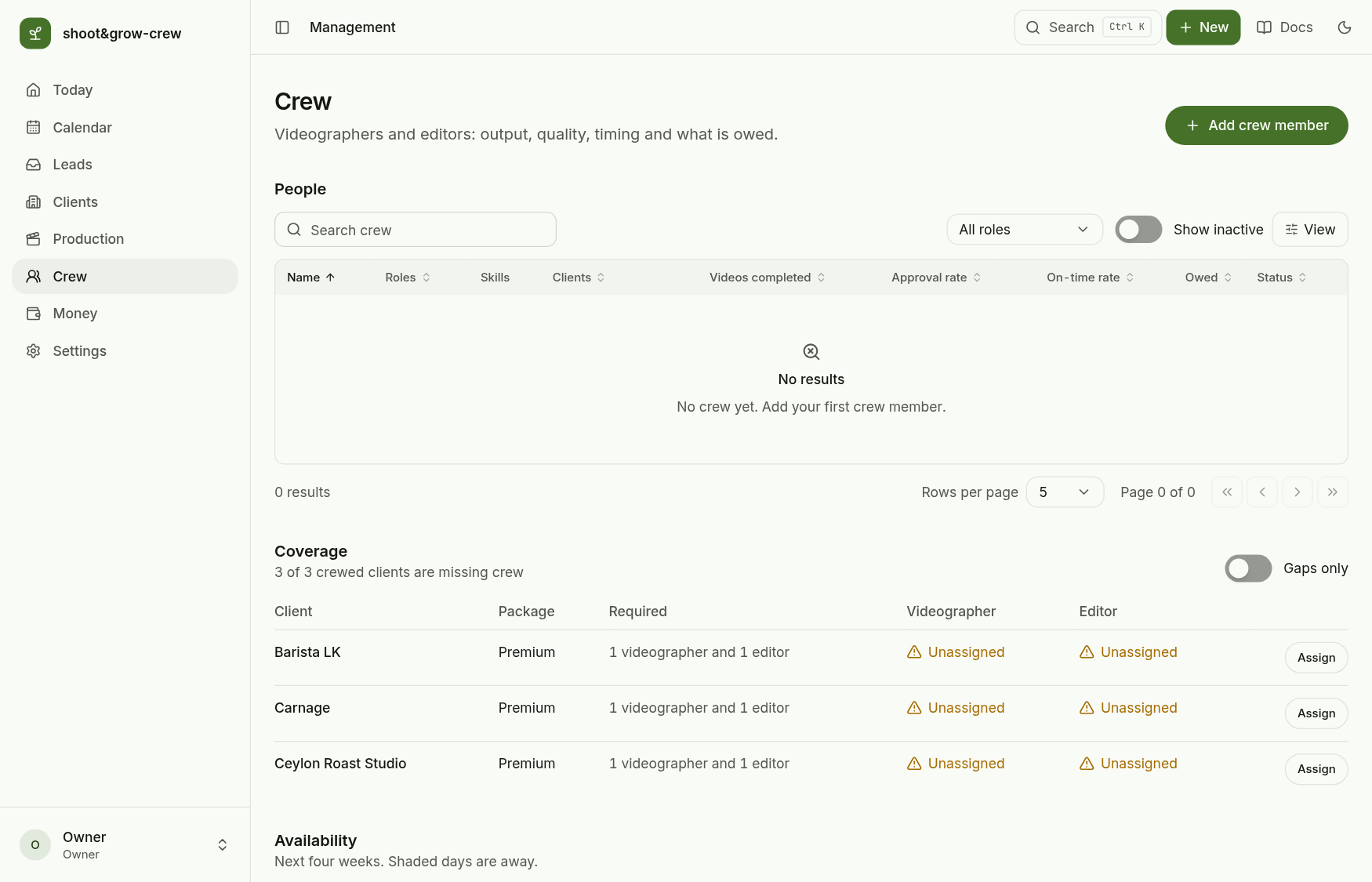
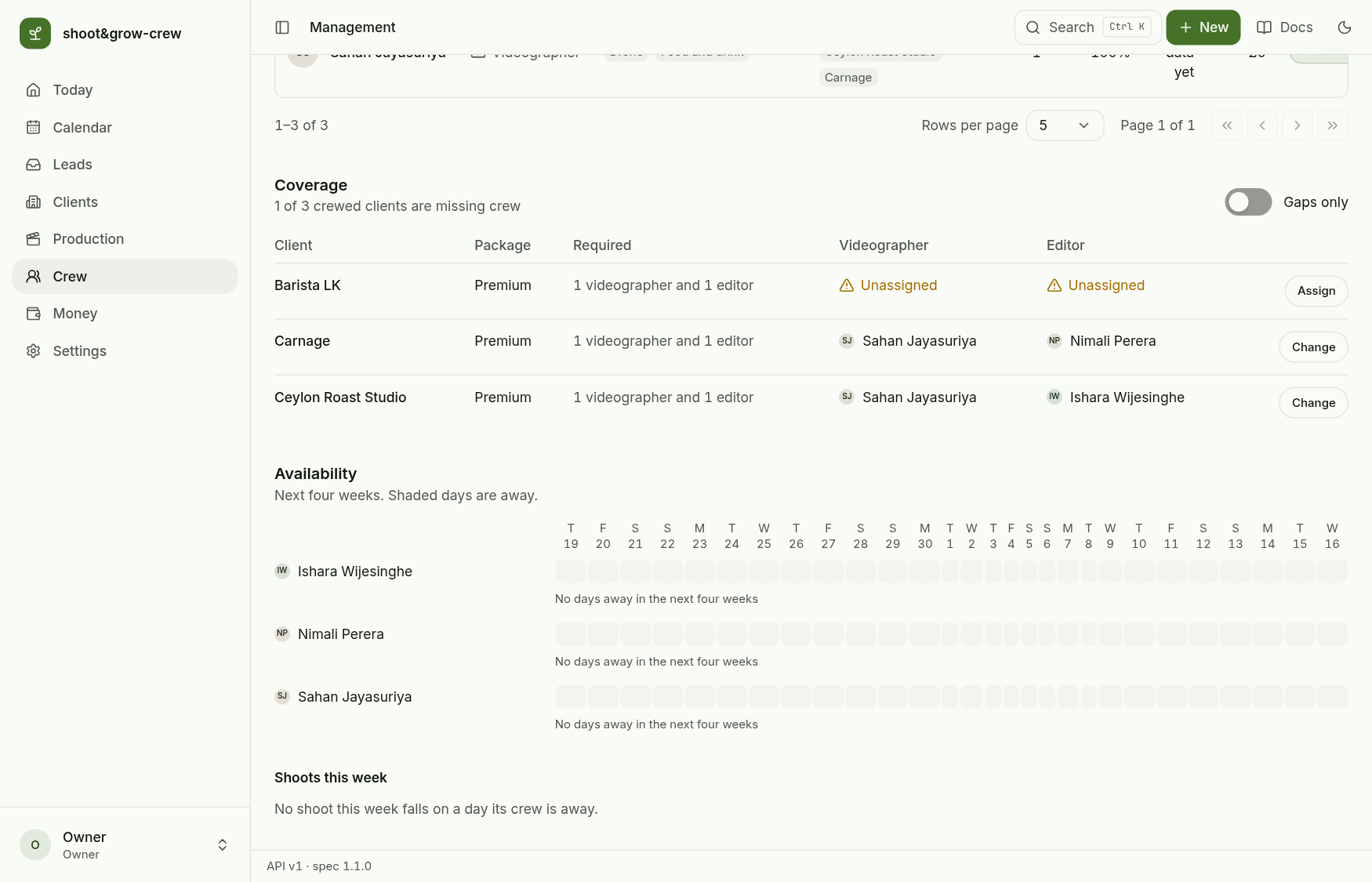
Open Crew. The table lists people, Coverage shows each active client against what its package requires, and Availability shows the next four weeks.
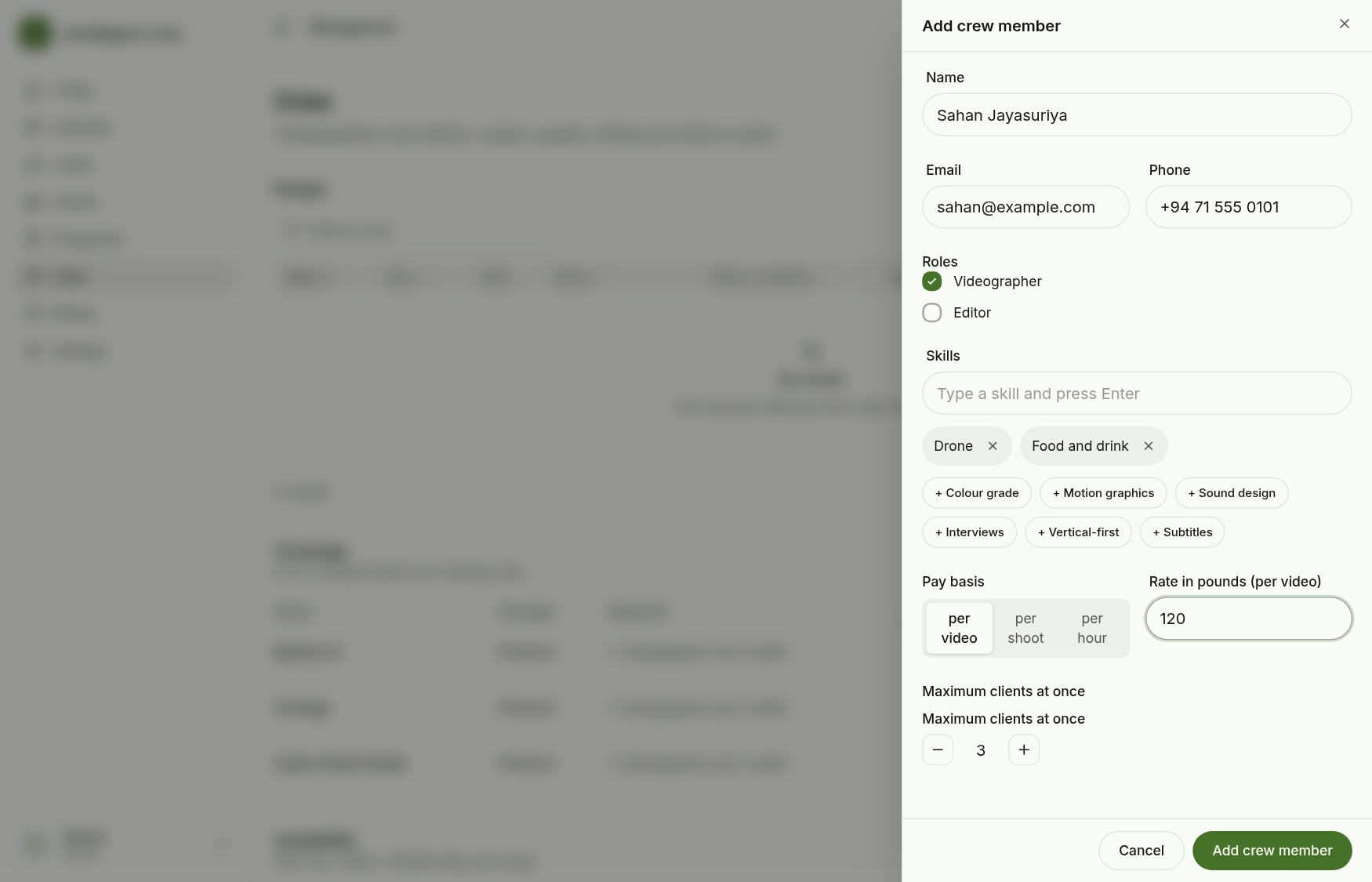
Choose Add crew member: name, email, phone, at least one role (videographer or editor), skills as tags, how they are paid (per video, per shoot or per hour) with the rate in pounds, and how many clients they can take at once. A second person with the same email is refused.
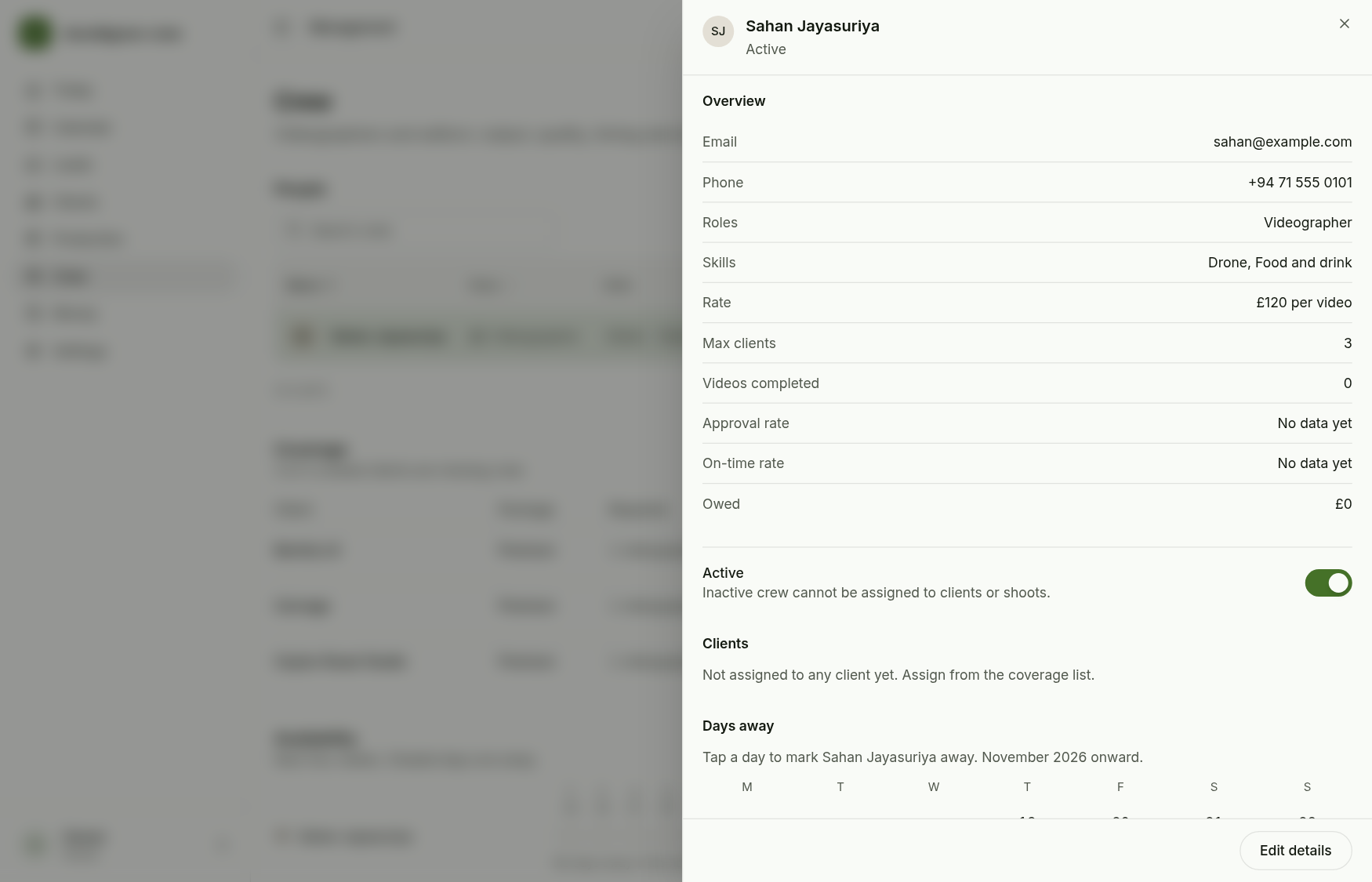
Saving opens the person's detail with their stats (No data yet until there is history).
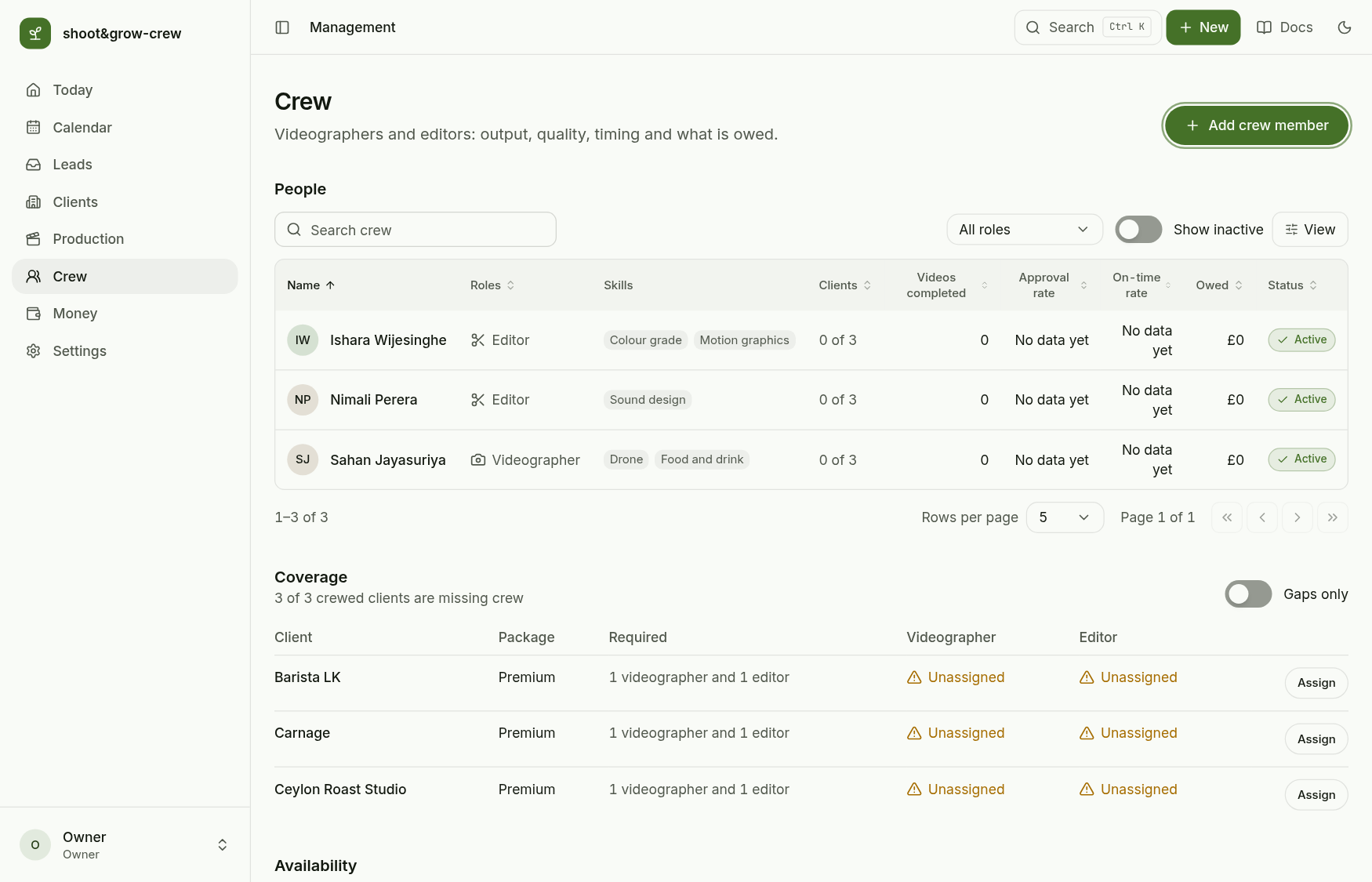
Add the editors the same way. Coverage now lists every client with its seats Unassigned and an Assign button.
2. Fill a client's seats
There are two places to do it, and both use the same rules.
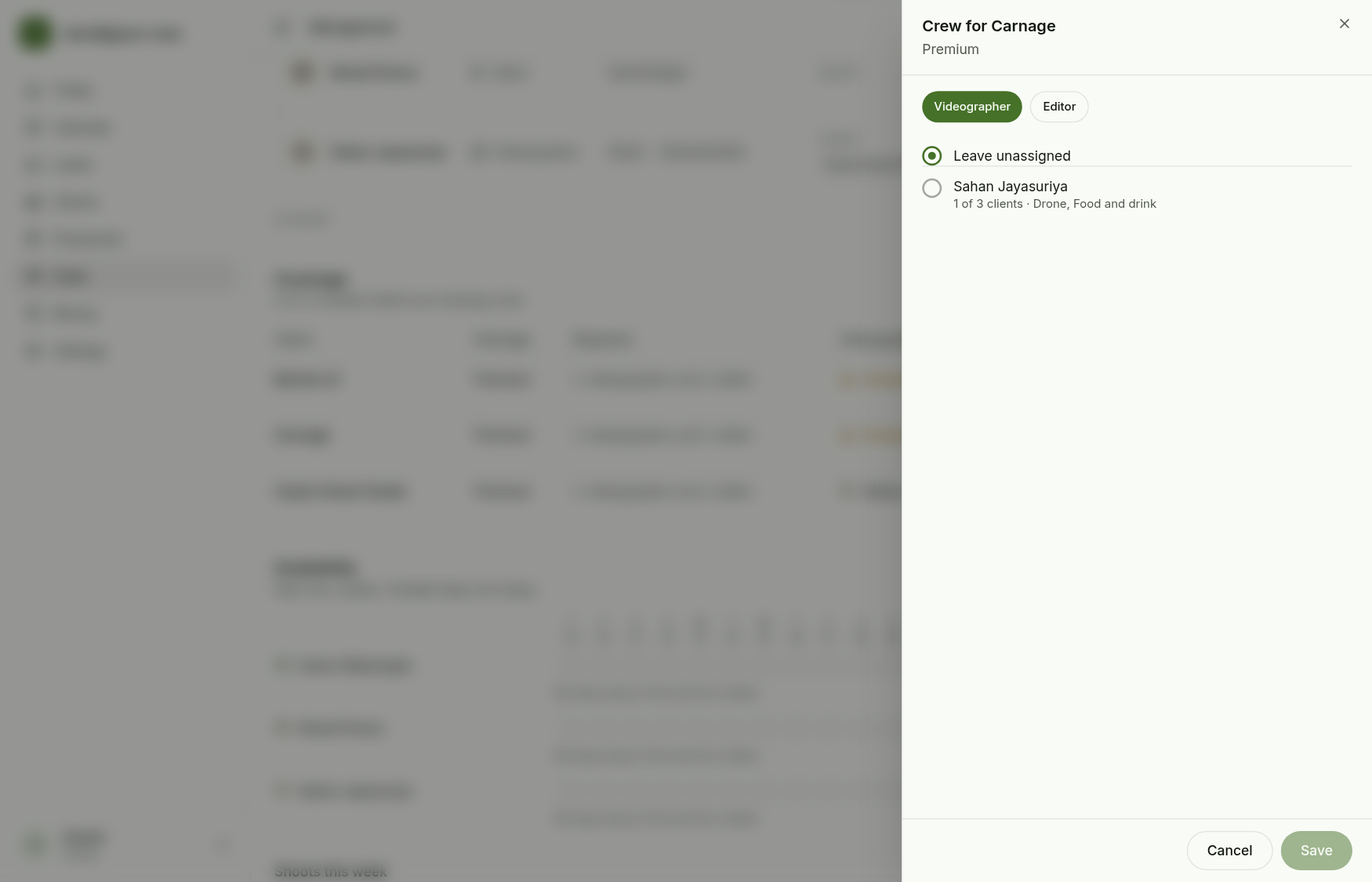
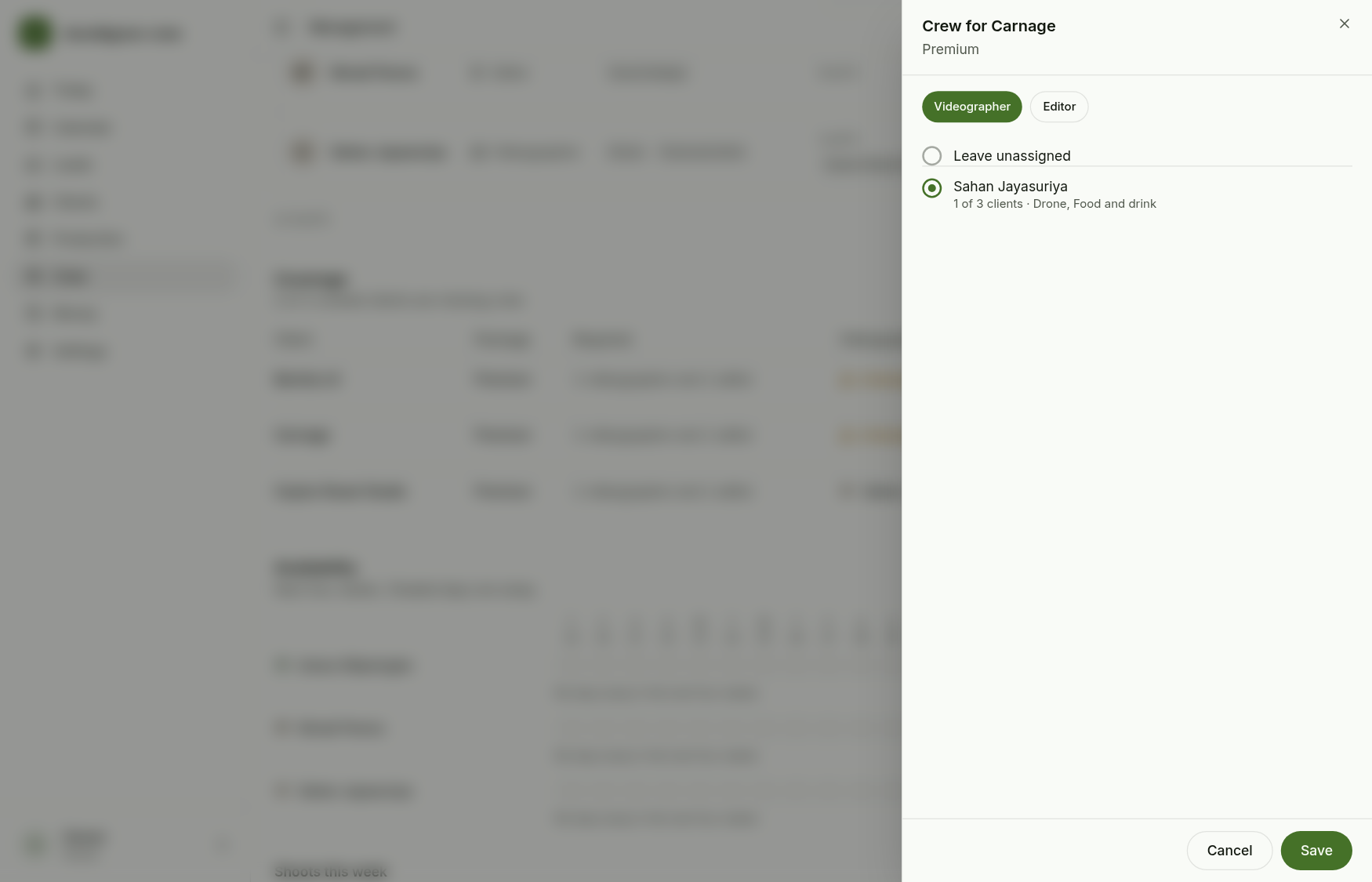
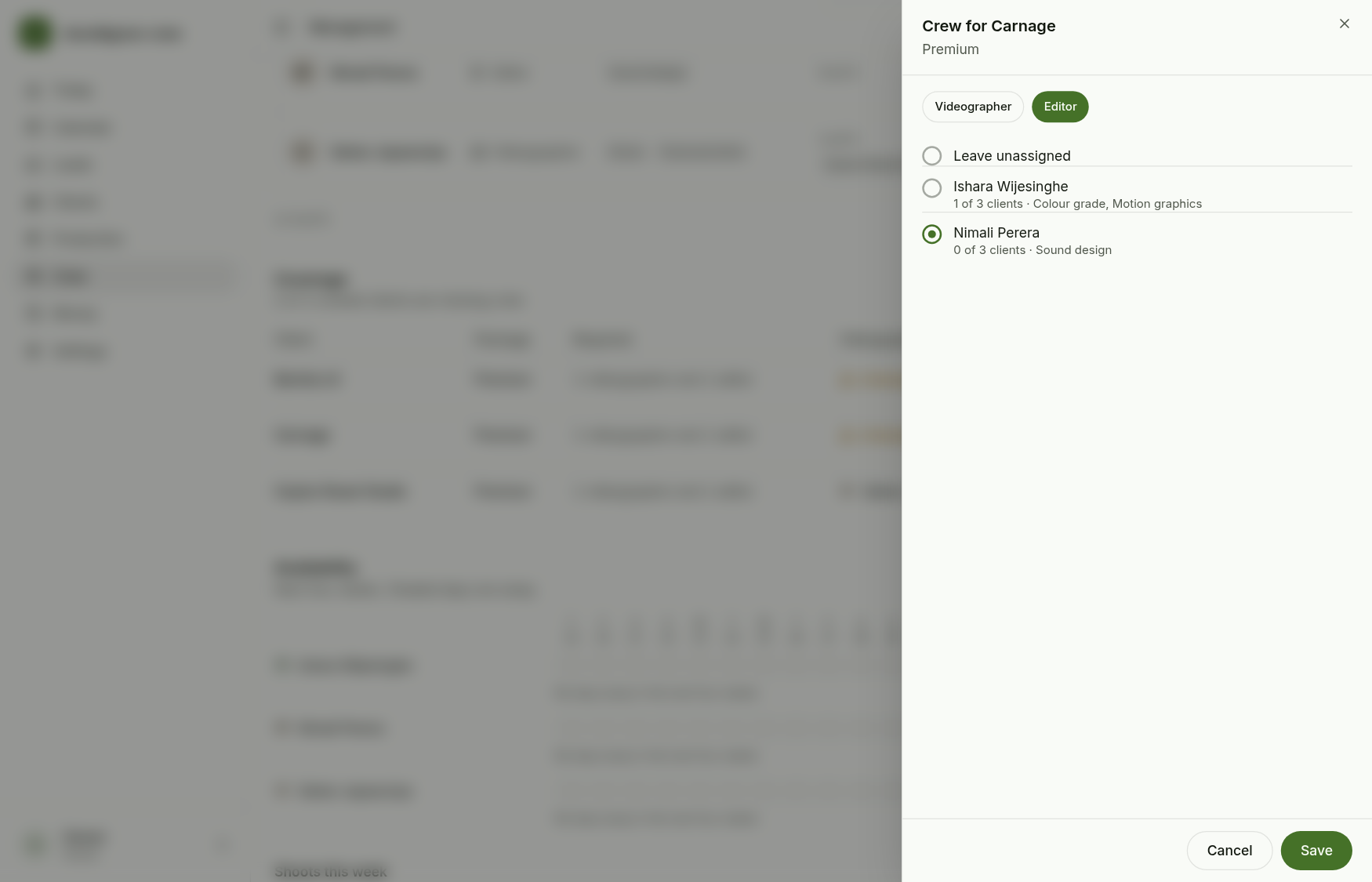
From the Crew page. Assign opens the assignment sheet. Pick a role, then a person; switch role and pick the second one. Save writes every role you chose. Each person shows how many clients they carry out of their maximum; someone at capacity cannot be chosen.
Coverage shows both seats filled and the button reads Change.
From the client. The client's Crew tab lists every seat the package includes, with a searchable picker per seat. Choosing a person saves at once and offers Undo; choosing someone else swaps them in one step.
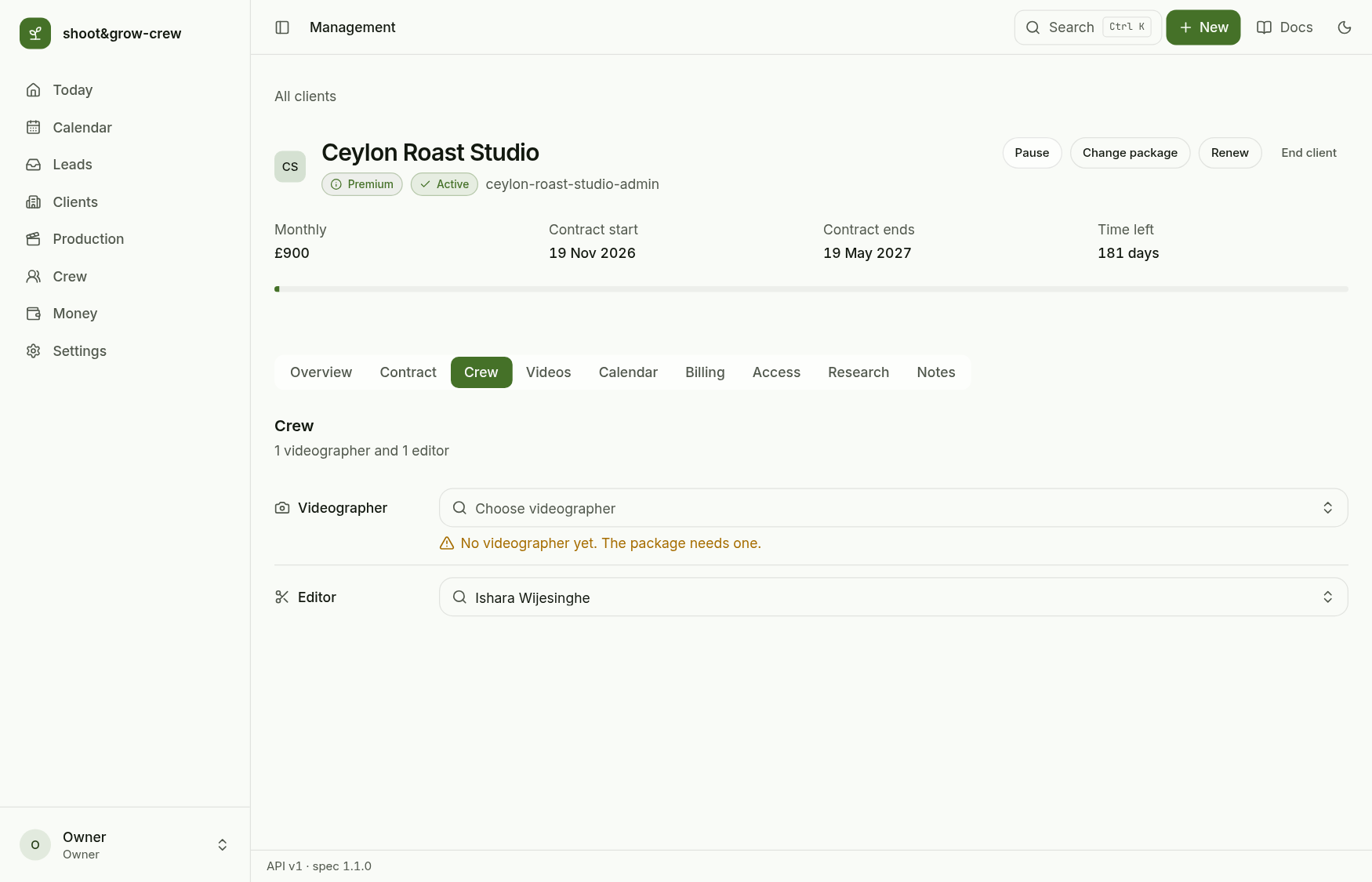
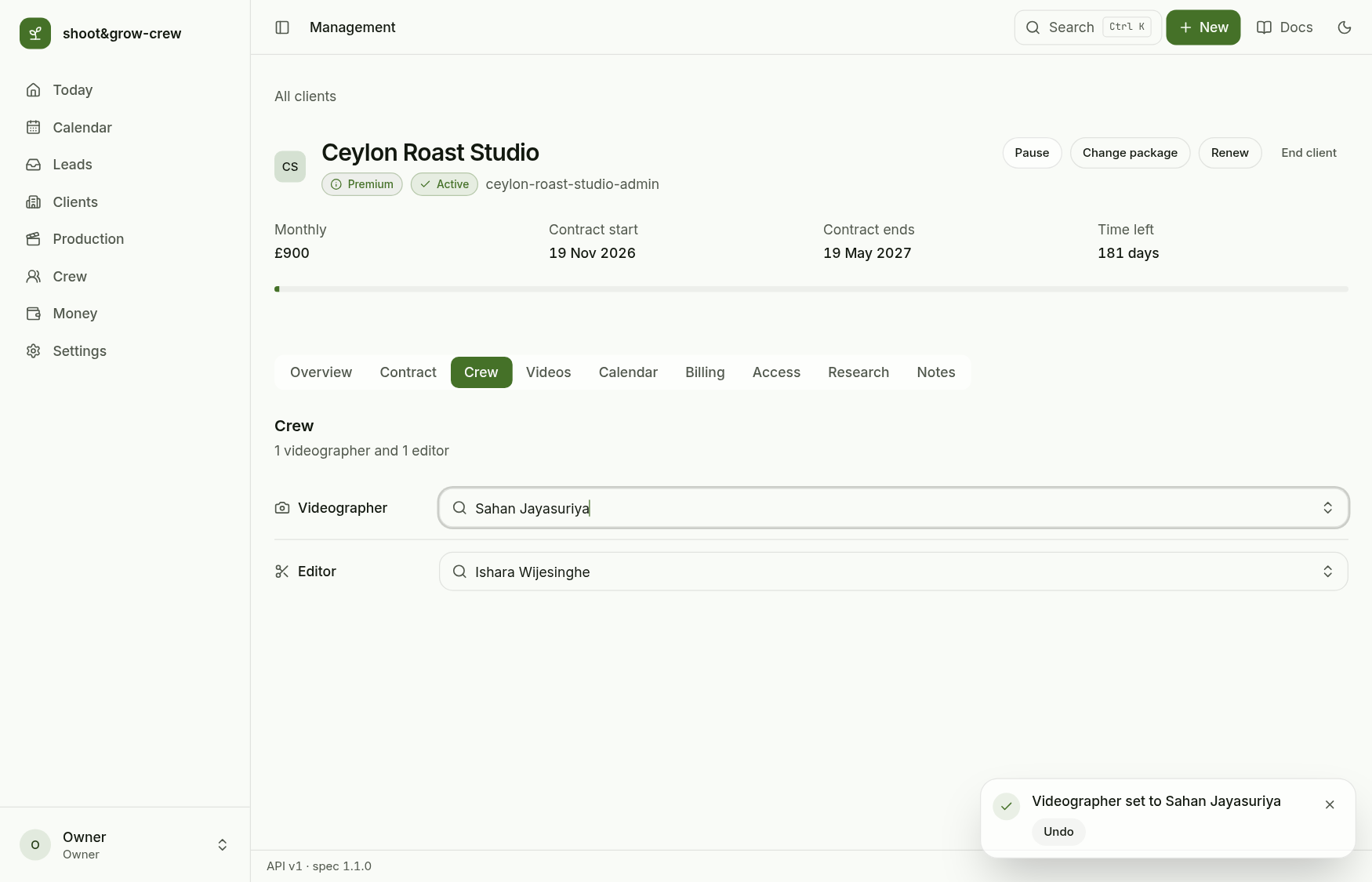
The server only accepts a seat the package asks for, from an active person who has that role, within their capacity. A Standard package has no seats: those clients film and edit themselves. Someone who is on open videos, upcoming shoots or seats on active clients cannot be deactivated until they are reassigned.
3. Book a shoot day
Open Calendar. Discovery calls, shoots and deadlines share one calendar, in Month, Week (an agenda list on phones) and Agenda views.
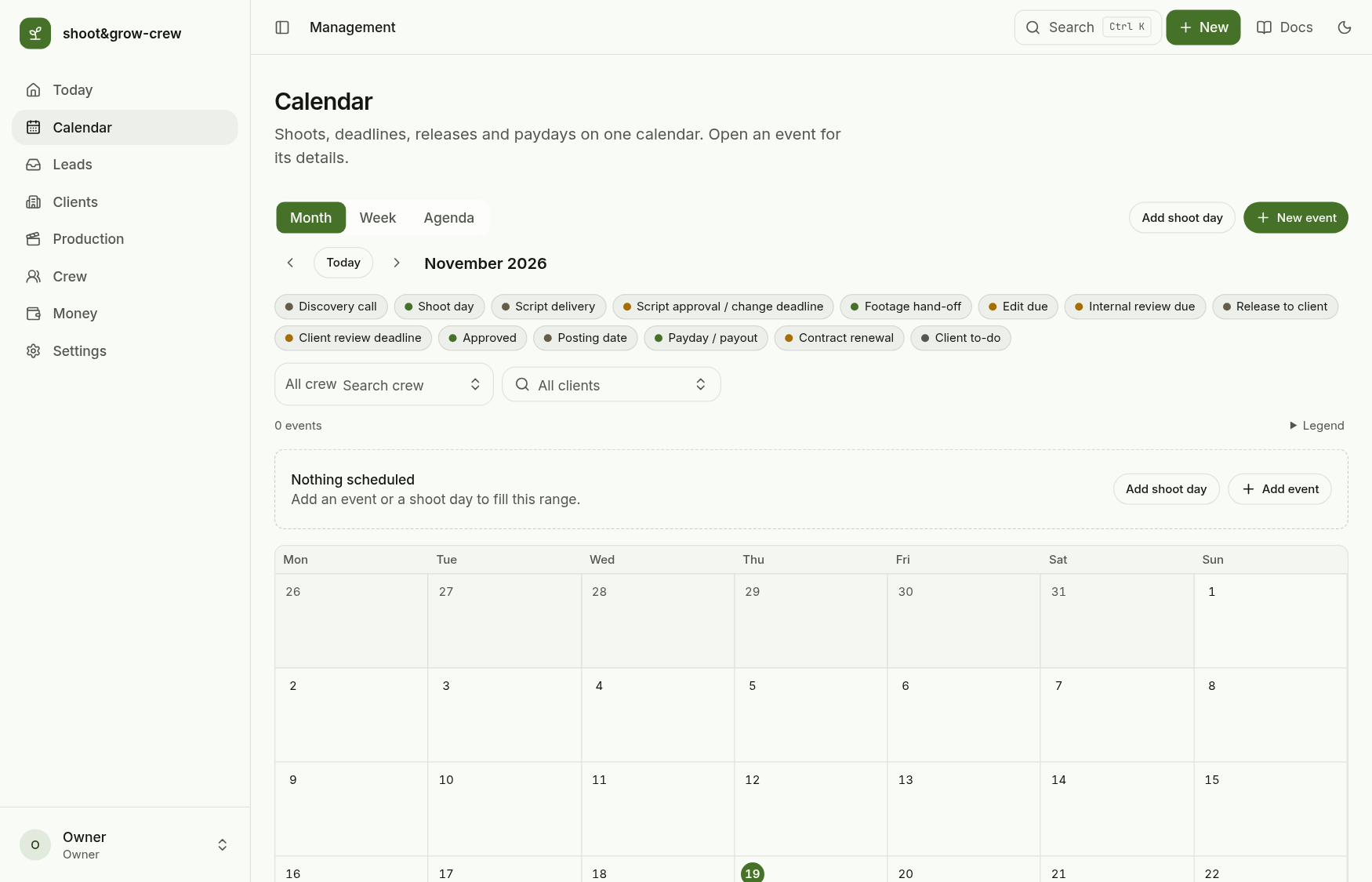
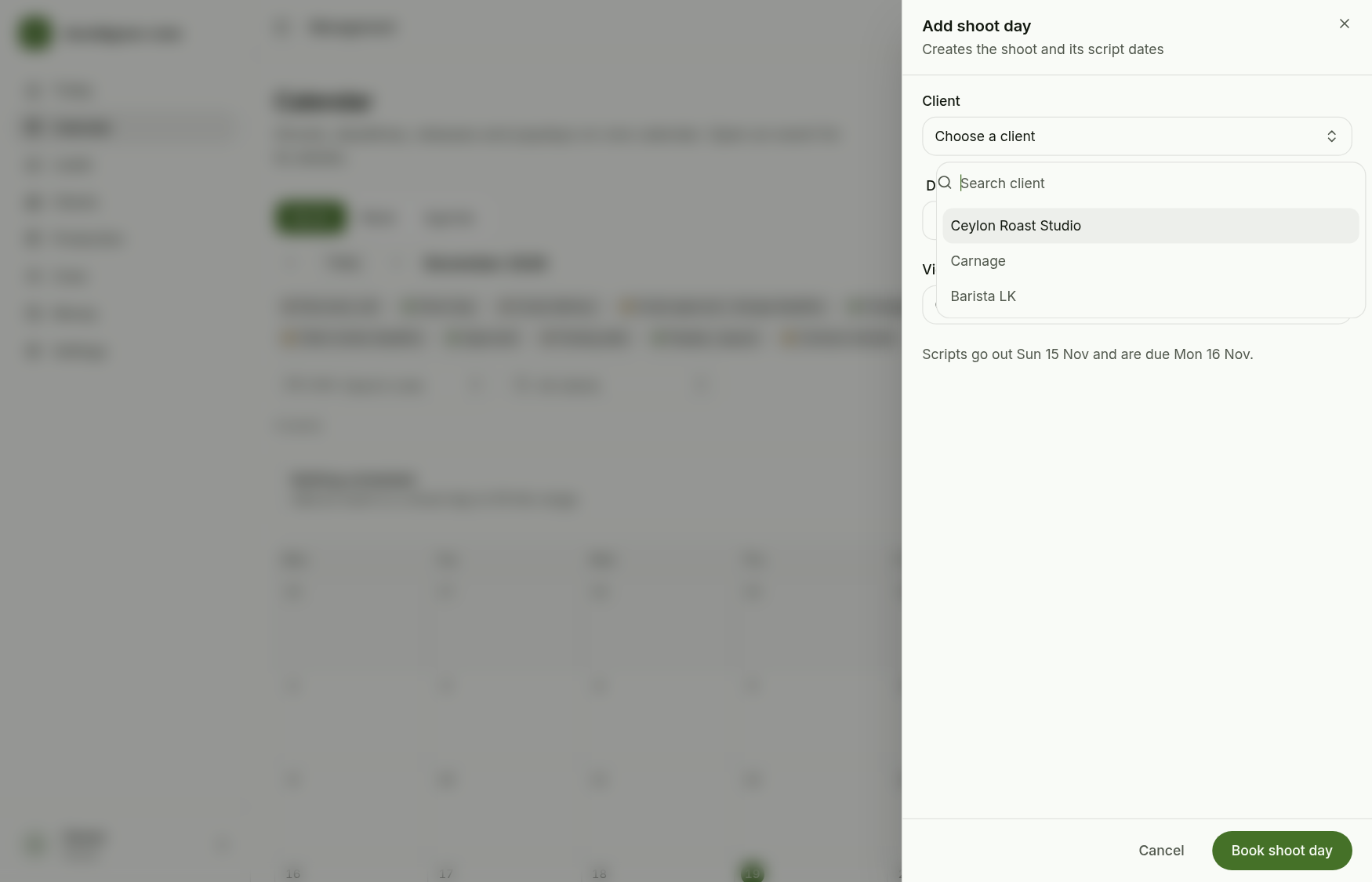
Add shoot day creates the shoot and its two script dates (scripts go out 4 days before, due 3 days before).
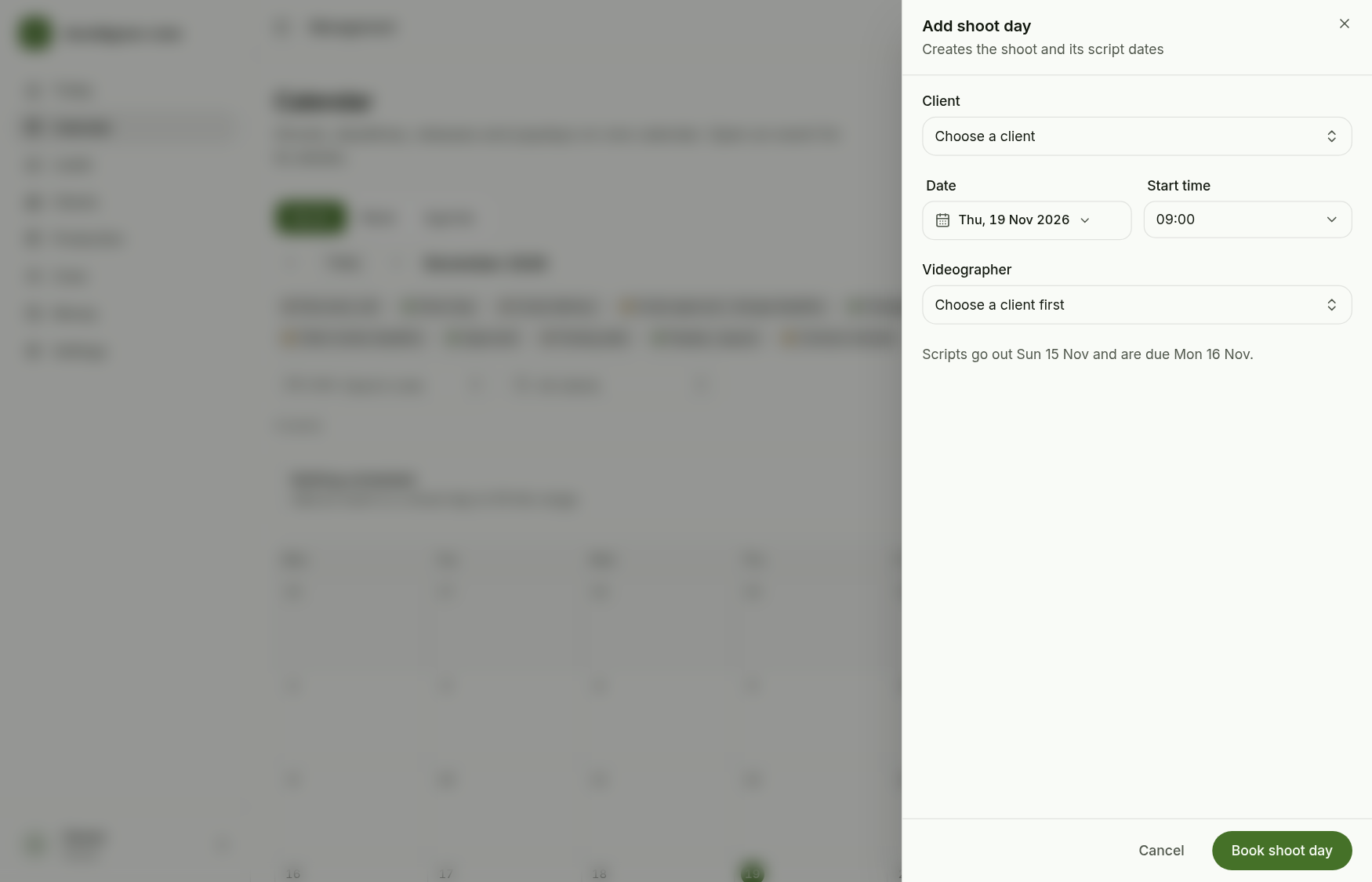
Choose the client.
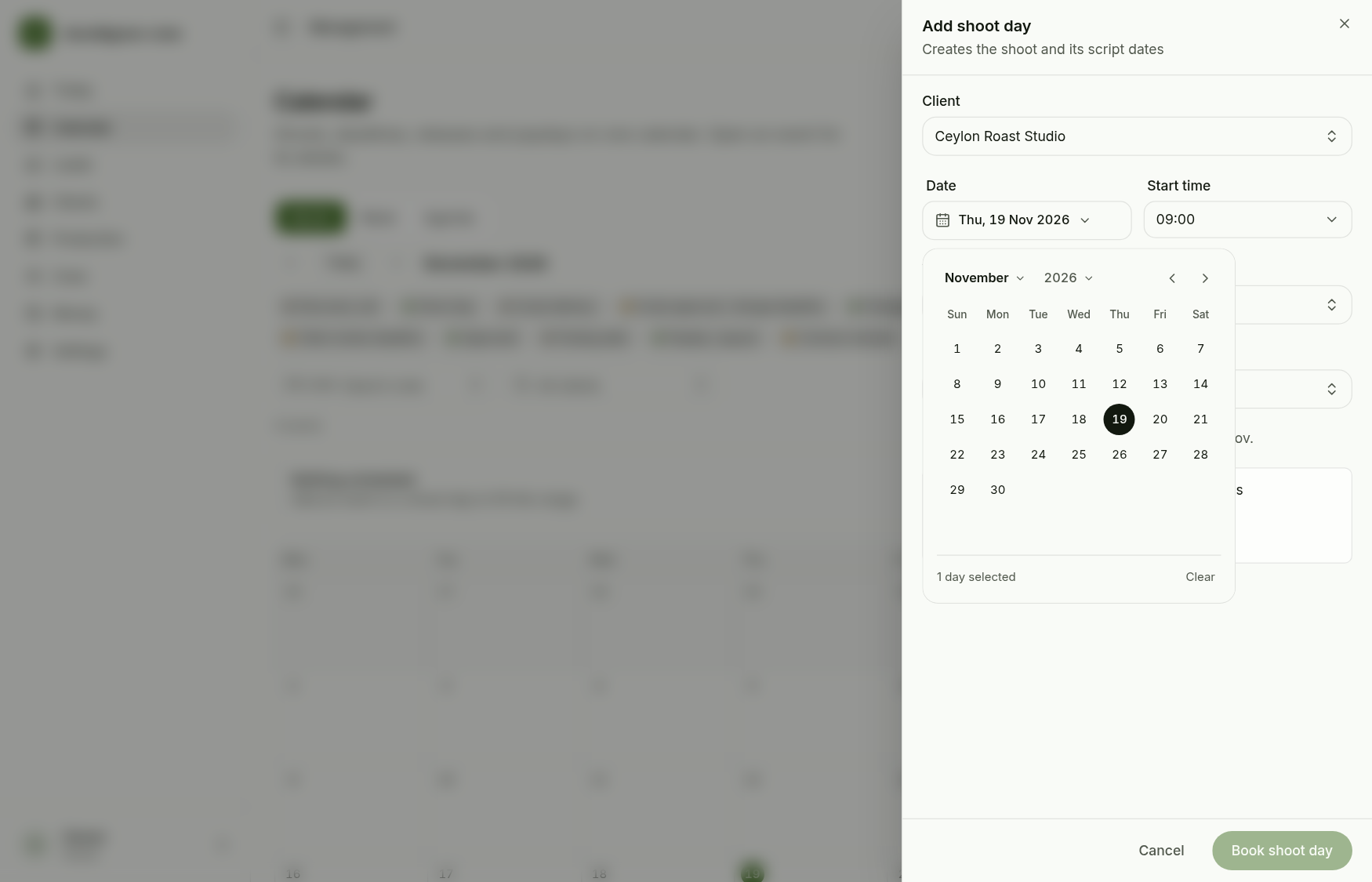
Pick the date. The date field shows a single day and closes when you choose one.
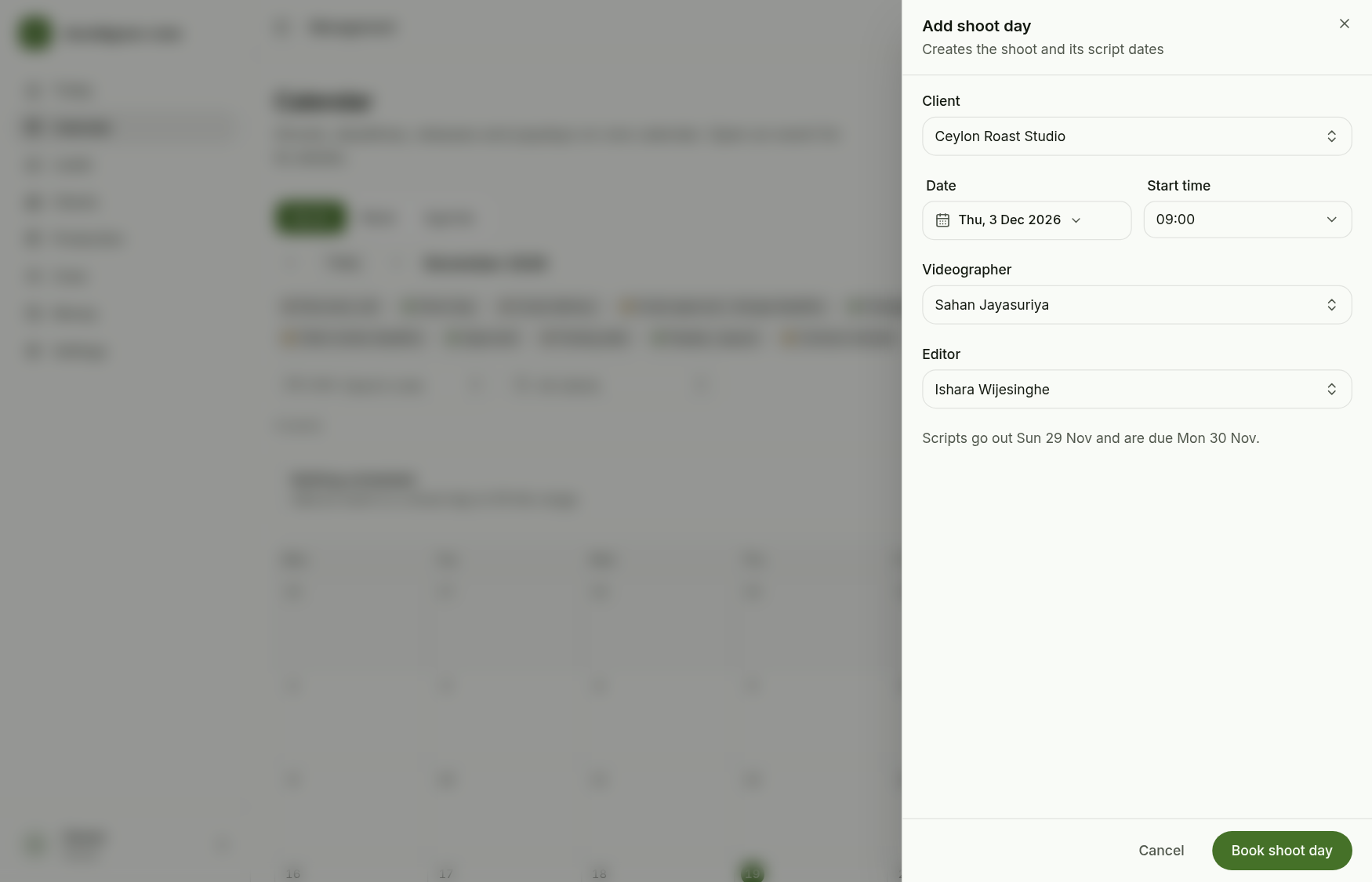
The videographer and editor are filled from the client's seats and the sheet tells you when the scripts go out. Book shoot day saves all three events together.
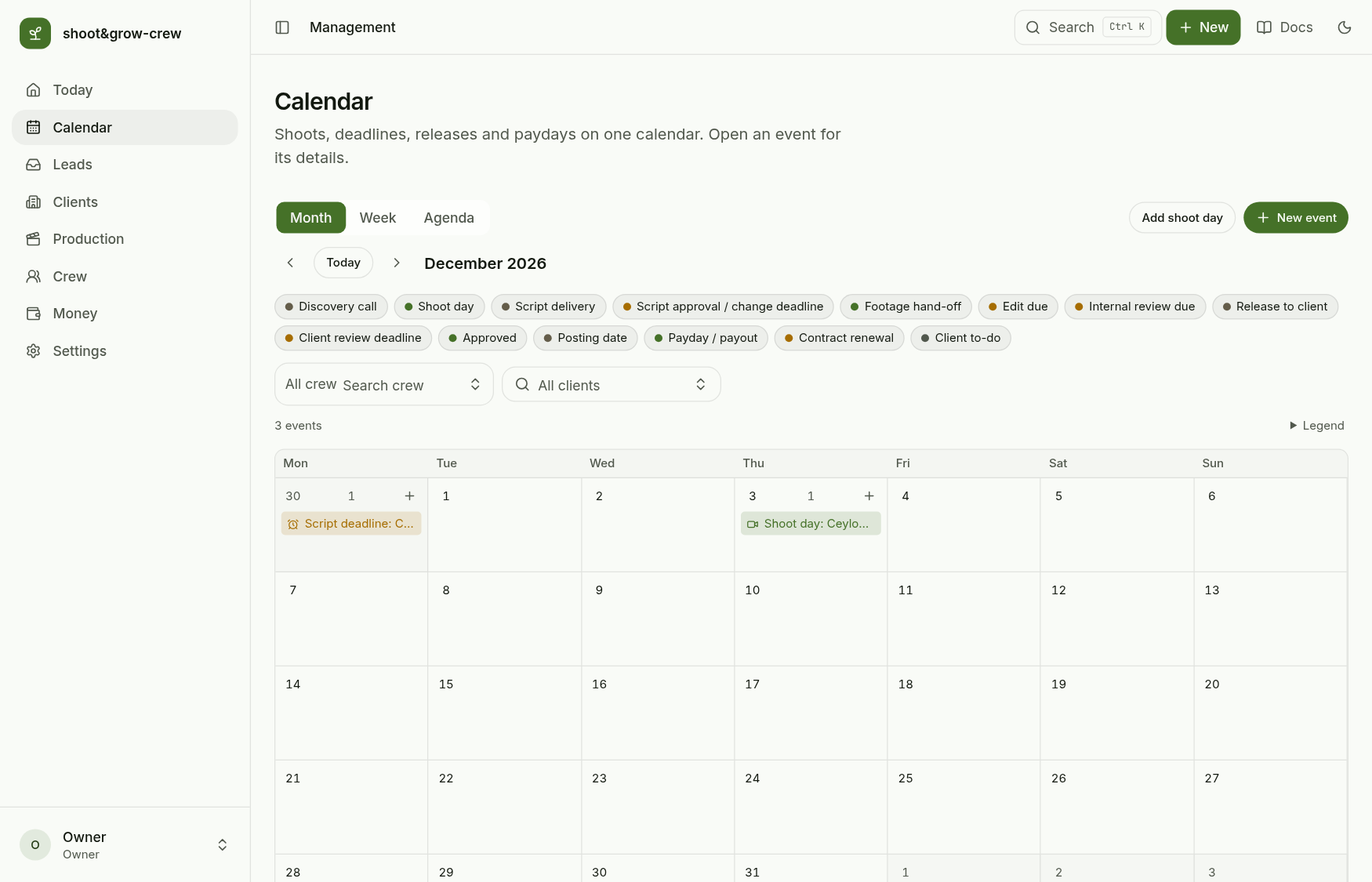
Open an event for its details: when, duration, client, crew and the linked script events, with Edit, Move to tomorrow, Move to next week, Duplicate and Cancel event.
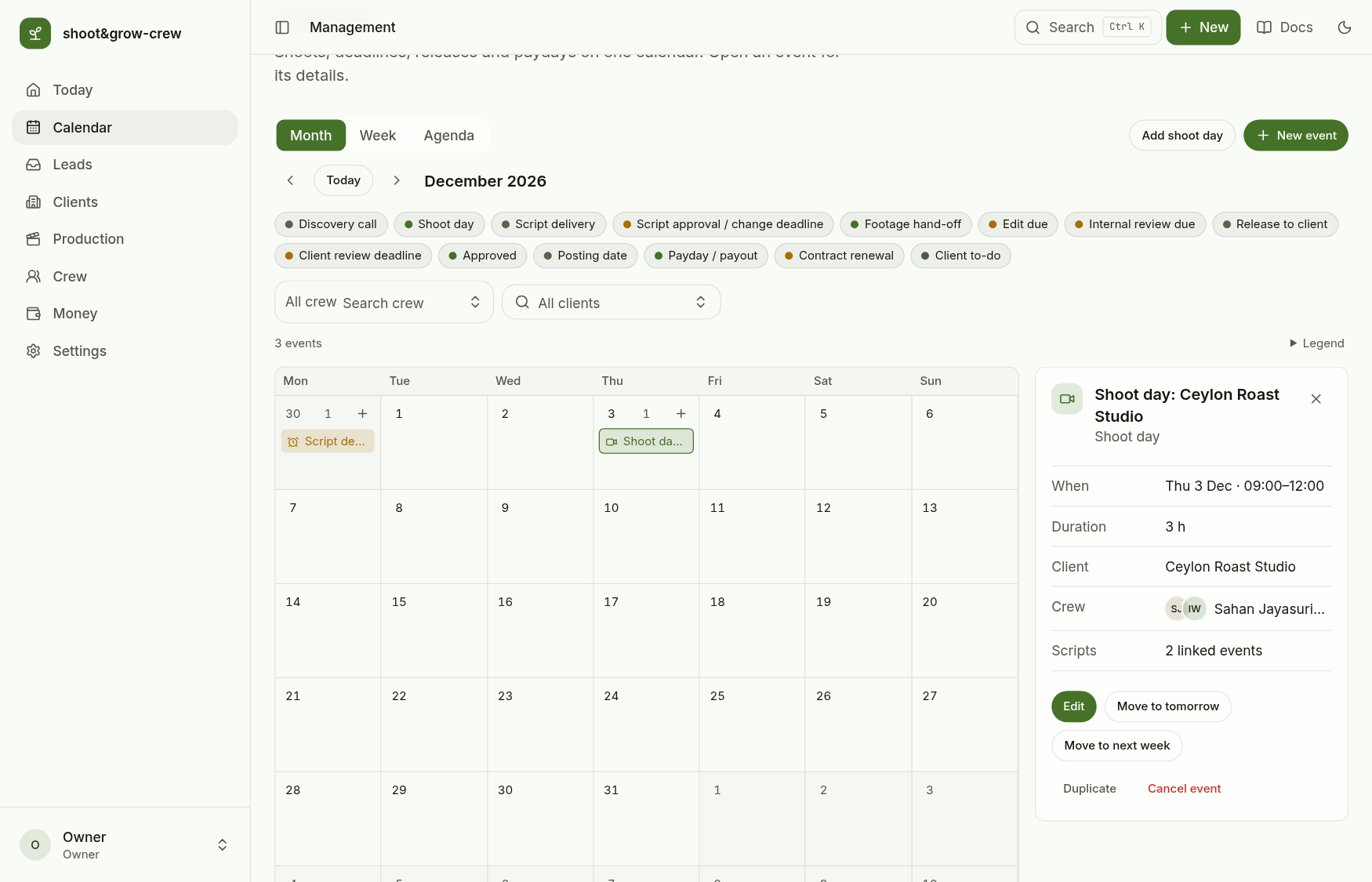
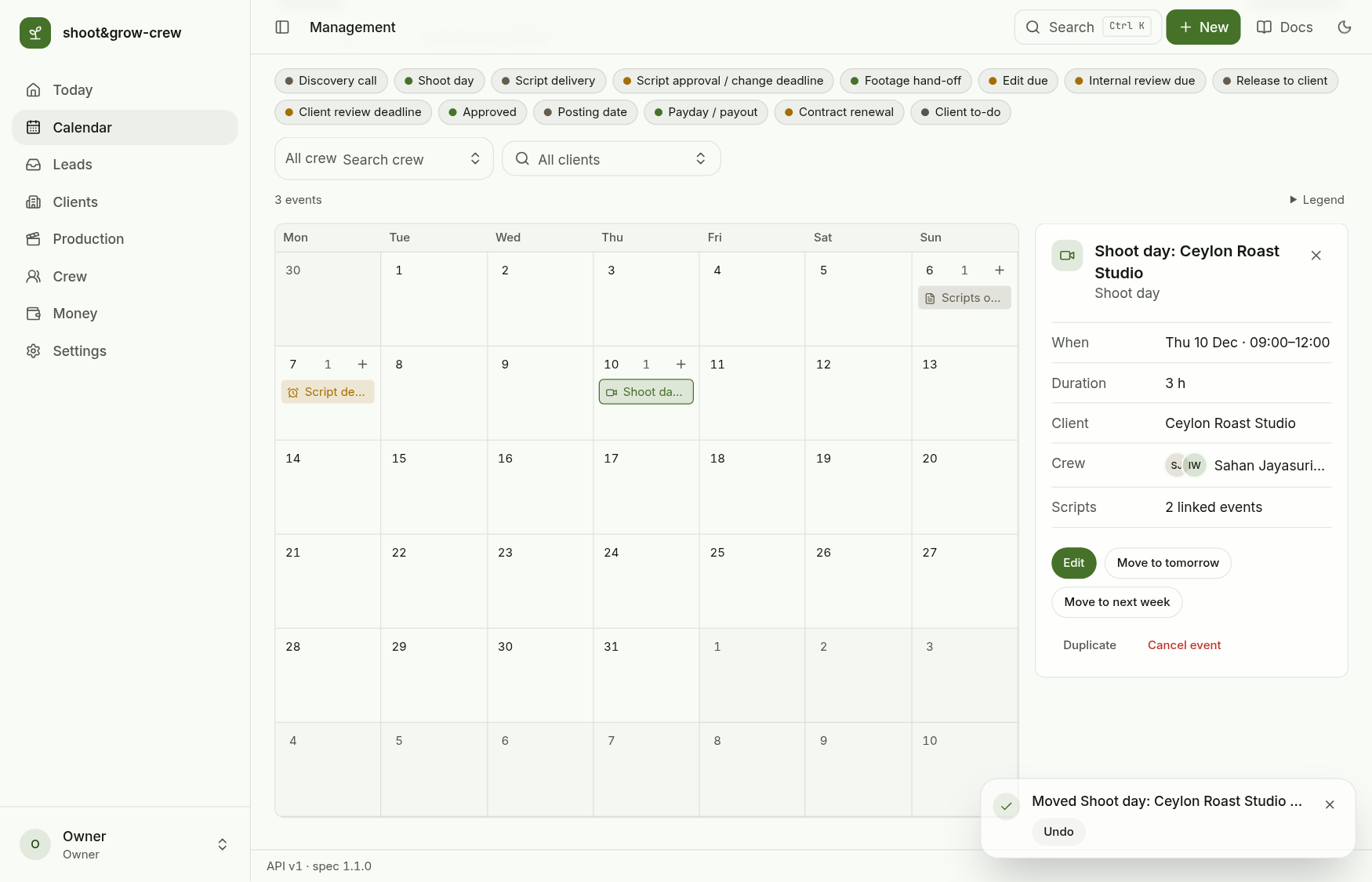
Moving a shoot moves its script dates with it, in one step, and offers Undo. Here the shoot moved a week: scripts now go out Sunday 6 December and are due Monday 7 December.
The server refuses a shoot for a client that is not active, a premium shoot without an available videographer, a crew member who is away that day, and two overlapping shoots for the same videographer. Days are London days.
Next: Production and delivery.